
A newly deployed Virtual Private Server (VPS) may be ready to run your website or application, but that does not automatically mean it is ready for production. Before making your server publicly accessible, review its security settings, administrative access, exposed services, backups, and monitoring.
This VPS security checklist helps website owners, developers, and system administrators verify essential security controls before launch. It focuses on practical checks for Linux VPS environments without replacing a detailed server-hardening guide.
Work through each section and confirm that the relevant control is working. Some settings depend on your Linux distribution, applications, and hosting provider, so verify your environment before making changes.
Why VPS Security Checks Matter Before Launch
A VPS can be exposed to internet traffic through its public IP address, firewall rules, and running services. Weak authentication, outdated software, unnecessary open ports, or missing recovery arrangements can increase security risks.
Before launching a website or business application, check that:
- The operating system and installed software receive security updates.
- Administrative access uses appropriate authentication and permissions.
- Only necessary network services are exposed.
- Applications and sensitive credentials are protected.
- Backups can be restored when needed.
- Logs and monitoring help you detect operational or security problems.
These checks establish a practical security baseline. They reduce common risks but cannot guarantee that a server is completely secure.
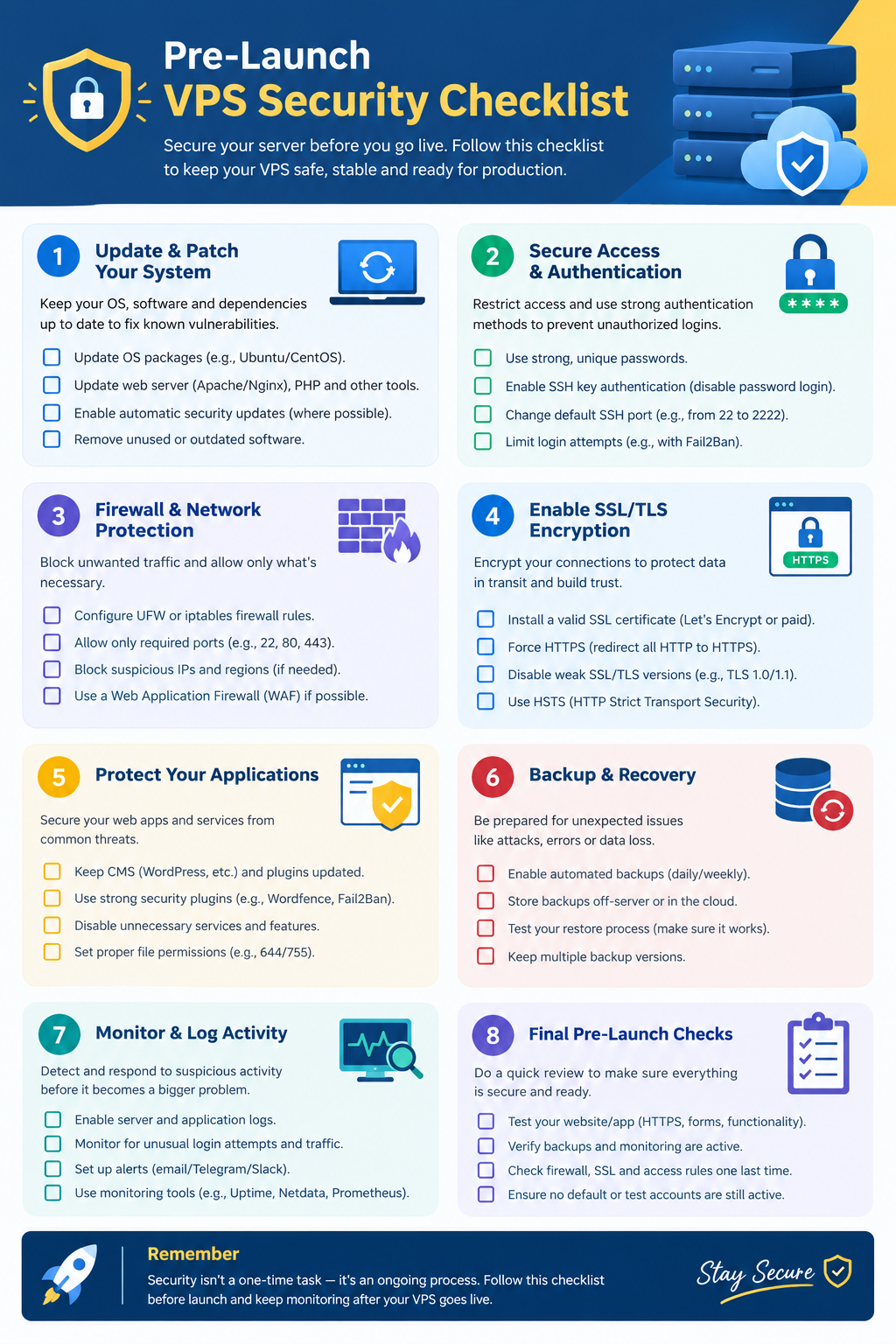
Pre-Launch VPS Security Checklist
1. Update the Operating System and Software
An outdated operating system or application may contain known vulnerabilities. Start by confirming that your server uses a supported operating system and that security patches are installed.
Checklist
- Confirm that your Linux distribution and version receive security updates.
- Install applicable operating-system and package updates.
- Update exposed services and applications, including web servers and databases.
- Check whether updates require a reboot or service restart.
- Establish a process for applying future security updates.
For Ubuntu and Debian systems using APT, the following commands refresh package information and install available package upgrades:
sudo apt update
sudo apt upgrade
Review the proposed changes before proceeding, particularly on production systems with customized packages or dependencies.
Automatic security updates can help reduce delays in applying patches, but they should be configured and monitored appropriately. Consider application compatibility, maintenance windows, and reboot requirements.
Verification: Confirm that the package manager completed successfully, review any pending reboot requirements, and check that essential services are functioning.
Official reference: Ubuntu Security Updates.
2. Secure SSH and Administrative Access
Secure Shell (SSH) is commonly used to administer Linux VPS servers remotely. Poorly protected administrative access can expose the entire system to unauthorized changes.
Checklist
- Use SSH key authentication where appropriate.
- Create a named administrative account with the privileges it needs.
- Restrict direct root login over SSH when a tested alternative is available.
- Disable password-based SSH authentication only after confirming that key-based access works and no required access method depends on passwords.
- Remove obsolete SSH keys and unauthorized accounts.
- Protect private keys and administrative credentials.
Verification: Open a separate terminal and confirm that the intended administrator can establish a new SSH connection using the configured authentication method.
Before applying SSH configuration changes, validate the configuration with the appropriate syntax-checking command for your OpenSSH installation. On many Linux distributions, this is:
sudo sshd -t
Check your distribution’s documentation if the command or configuration layout differs. Apply changes using the appropriate service-management procedure.
Important: Keep your existing administrative session open until the new connection succeeds. If SSH access is lost, you may need your hosting provider’s console or recovery access.
Changing the default SSH port may reduce routine scanning noise, but it is not a replacement for strong authentication and access controls.
Official reference: OpenSSH Server Configuration Manual.
3. Configure the Firewall and Review Open Ports
A firewall helps control which network connections can reach your VPS. Your goal is to expose only the services required by your website, application, or administration workflow.
Checklist
- Identify the firewall used by your operating system.
- Review existing firewall rules before changing them.
- Allow the actual SSH port and any other required administrative access.
- Allow HTTP and HTTPS if your public-facing application requires them.
- Restrict databases, caches, and internal services to trusted networks where possible.
- Review both provider-level network rules and host-level firewall rules.
- Confirm that unnecessary public-facing services are not accessible.
On an Ubuntu server that uses UFW, inspect the current rules with:
sudo ufw status verbose
To review listening TCP and UDP sockets on many Linux distributions, use:
sudo ss -lntup
The output helps identify services listening on network ports. Interpret it alongside your application requirements and network configuration: a listening service is not necessarily publicly reachable, and the command does not by itself establish what an external host can access.
Verification: Check the effective firewall rules and, where appropriate, test externally reachable ports from a system outside the VPS.
Important: Do not enable restrictive firewall rules until you have confirmed that they allow the correct SSH port and required application traffic. Incorrect rules can interrupt remote access or take your website offline.
UFW, firewalld, nftables, and iptables are not interchangeable configuration interfaces. Follow the guidance for the firewall actually used by your system.
Official reference: Ubuntu Firewall Documentation.
4. Review User Accounts and File Permissions
Every account and permission adds to the server’s access model. Excessive privileges can increase the impact of a compromised account or application.
Checklist
- Review user accounts and remove or disable access that is no longer required.
- Check membership of administrative groups.
- Apply the principle of least privilege.
- Review ownership and permissions of sensitive configuration files and application data.
- Protect database passwords, API keys, environment files, and private keys.
- Prefer individual administrative accounts when practical.
Verification: Confirm that each user has the permissions needed for their responsibilities and no unnecessary administrative access.
Avoid broad permission changes such as recursively making an entire application directory writable by every user. Incorrect permissions can expose sensitive files or break applications.
5. Disable Unnecessary Services
A VPS may run services that are not required for its intended purpose. These services can create additional exposure if they are vulnerable or accessible from untrusted networks.
Checklist
- Review listening services and identify their purpose.
- Confirm which services are required by your applications.
- Disable or remove unnecessary services only after checking their dependencies.
- Restrict database and cache services to the networks that need them.
- Check whether development tools and management interfaces are unnecessarily exposed.
Verification: Compare the services running on your server with the requirements of your production workload.
For example, a database used only by an application on the same VPS may not need to accept public internet connections. A remote database may require network access, but that access should be restricted and authenticated appropriately.
Do not disable unfamiliar services without first determining what they do. Some system services are necessary for networking, security, or normal server operation.
6. Configure Appropriate Intrusion Prevention
Intrusion-prevention tools can help detect or limit certain repeated authentication attempts and other suspicious activity. Their value depends on the services exposed and the security controls already in place.
Checklist
- Review the authentication protections available for your services.
- Consider a tool such as Fail2ban if repeated login attempts are a relevant risk.
- Configure appropriate rate limits or access restrictions where supported.
- Check that security tools are functioning and their logs are available.
- Avoid installing overlapping tools without checking compatibility.
Verification: Review the tool’s configuration and logs to confirm that it is operating as intended.
Fail2ban and similar tools are optional, workload-dependent controls—not universal requirements for every VPS. They also do not replace software updates, secure authentication, firewall rules, or monitoring.
Choose security tools based on your environment rather than installing multiple products simply to increase the number of protections.
7. Configure and Test Backups
Backups provide a recovery option when data is deleted, applications fail, or a security incident affects the server. A backup is only useful if the required data can be restored.
Checklist
- Configure backups before production launch.
- Include essential website files, databases, and required configuration.
- Keep a separate protected copy outside the VPS where possible.
- Restrict backup access and protect backup credentials.
- Review backup schedules and confirm that jobs complete successfully.
- Test restoration in a safe environment.
- Document the steps needed to recover the service.
Verification: Restore representative files or a database into a test environment and confirm that the restored data is usable. For a more complex application, test whether its configuration and dependencies can also be recovered.
For important business services, define two recovery objectives:
- Recovery Point Objective (RPO): How much recent data can the business afford to lose?
- Recovery Time Objective (RTO): How long can the service remain unavailable?
Use these objectives to choose suitable backup frequency and recovery arrangements.
Keeping the only backup on the same VPS is risky because a server failure or compromise may affect both the original data and its backup.
8. Secure Applications and Enable HTTPS
Securing the operating system is only part of preparing a VPS for production. Web applications, plugins, libraries, database connections, and stored credentials also need appropriate protection.
Checklist
- Install relevant application and dependency security updates.
- Replace default application credentials.
- Protect API keys, environment variables, and database credentials.
- Restrict access to application configuration files and sensitive data.
- Configure valid TLS certificates for public-facing websites and applications where applicable.
- Verify HTTPS and certificate renewal arrangements.
- Restrict access to internal application endpoints and databases.
Verification: Open the application through its intended secure URL, check for certificate errors, and confirm that required services can communicate without exposing credentials.
HTTPS protects data in transit between clients and servers. It does not automatically secure the operating system, fix vulnerable application code, or prevent unauthorized access to the server.
If your VPS runs a control panel or a non-web application, apply the relevant security controls for that workload rather than assuming every service needs the same configuration.
Official reference: Ubuntu Server Security Documentation.
9. Enable Logging, Monitoring, and Alerts
A security checklist is a starting point, not a one-time solution. Monitoring helps you identify service failures, unusual activity, and resource problems after launch.
Checklist
- Confirm that essential system and authentication logs are available.
- Review logs for unexpected login activity or errors.
- Monitor CPU, memory, disk space, and service availability.
- Configure relevant alerts for failures or unusual activity.
- Protect log access and establish suitable retention.
- Decide who will investigate alerts and respond to incidents.
Verification: Confirm that monitoring is collecting data and that test notifications reach the intended recipient where supported.
Monitoring requirements depend on the workload. A small website may need basic service and disk alerts, while a business-critical application may require centralized logs, more detailed security monitoring, and a documented incident-response process.
An alerting system provides limited value if nobody is responsible for reviewing its notifications.
10. Complete the Final Pre-Launch Verification
Before directing production traffic to the VPS, review the results of the previous checks.
Final verification checklist
- The operating system is supported and relevant updates are installed.
- Administrative access has been tested using the intended authentication method.
- Firewall rules match the server’s actual network requirements.
- Unnecessary public-facing services have been restricted.
- User permissions and sensitive credentials have been reviewed.
- Required applications and services operate correctly.
- HTTPS is working where applicable.
- Backups exist and recovery arrangements have been tested.
- Essential logs, monitoring, and alerts are working.
- Administrative and recovery procedures are documented securely.
Verification: Review the completed checklist and record any unresolved risks. For systems that handle sensitive information or support important business operations, consider a qualified security review before launch.
A server does not have to use identical settings to every other VPS to be ready for production. Readiness depends on its operating system, application architecture, exposure, and risk level.
Common VPS Security Mistakes to Avoid
Several mistakes can undermine otherwise sensible security measures:
- Relying on a changed SSH port: Port changes do not replace strong authentication or access restrictions.
- Exposing databases unnecessarily: Internal services should not be publicly accessible without a genuine requirement and appropriate controls.
- Applying firewall rules without testing access: Incorrect rules can interrupt administration or application traffic.
- Keeping the only backup on the VPS: A separate protected copy improves recovery options.
- Using excessive permissions: Unnecessary privileges increase the potential impact of a compromised account.
- Assuming security tools guarantee protection: Tools must be configured, monitored, and maintained.
- Ignoring updates after launch: New vulnerabilities can appear after the initial security review.
The aim is to establish appropriate, verified controls—not to install every available security tool or change every default setting without understanding its purpose.
VPS Security Readiness Summary
Use this table to review the main controls before launch.
| Security area | Ready when… |
| Operating system | Supported and updated |
| SSH access | Intended administrative login tested |
| Firewall | Required traffic allowed and unnecessary exposure restricted |
| User permissions | Accounts and privileges reviewed |
| Network services | Unnecessary services disabled or restricted |
| Intrusion prevention | Appropriate protections reviewed and configured where needed |
| Backups | Separate protected copy available and restoration tested |
| Applications | Credentials protected and required secure connections configured |
| Monitoring | Essential logs and relevant alerts working |
| Final review | Outstanding risks documented and addressed appropriately |
Frequently Asked Questions
