
Introduction
Knowing how to check Windows VPS resources helps you understand how much processing power, memory, storage, and network capacity your server is using. Regular checks can help you identify resource shortages before they affect websites, databases, business applications, or Remote Desktop sessions.
Windows Server includes built-in tools for monitoring resource usage without installing additional software. In this guide, you will learn how to check CPU usage, RAM consumption, disk space, and network activity using Task Manager, File Explorer, and PowerShell.
1. Check CPU and RAM Usage Using Task Manager
Task Manager is the simplest starting point for checking Windows VPS resource usage. It displays current CPU and memory activity and can help you identify processes consuming significant resources.
Steps to open Task Manager
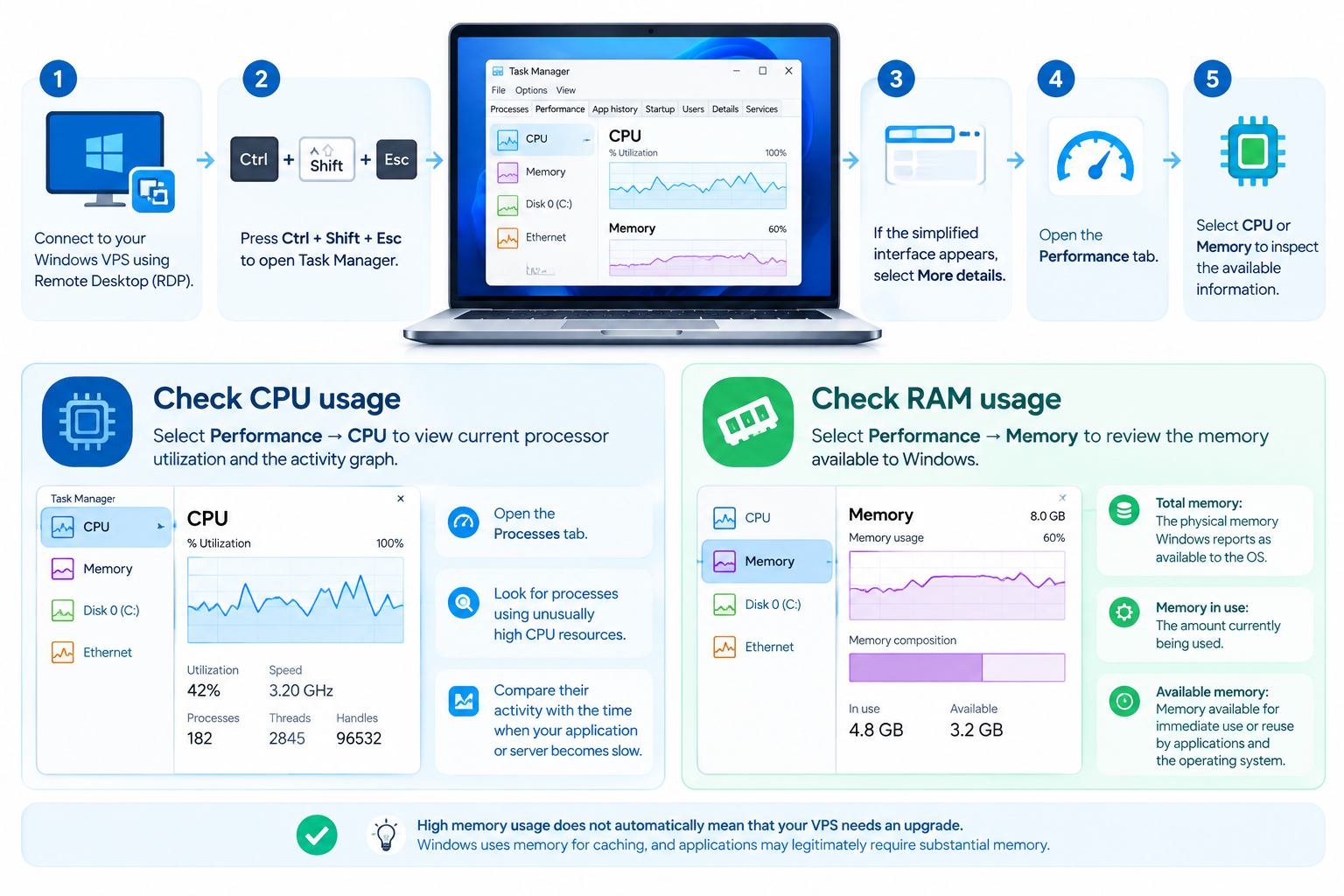
- Connect to your Windows VPS using Remote Desktop (RDP).
- Press Ctrl + Shift + Esc to open Task Manager.
- If the simplified interface appears, select More details.
- Open the Performance tab.
- Select CPU or Memory to inspect the available information.
The exact layout and available performance views depend on your Windows Server version and configuration.
Check CPU usage
Select Performance → CPU to view current processor utilization and the activity graph.
To identify processes using substantial processing power:
- Open the Processes tab.
- Review the CPU column.
- Look for processes consuming unusually high CPU resources.
- Compare their activity with the time when your application or server becomes slow.
The CPU graph shows current utilization, while the process list helps you identify potential sources of high usage.
Check RAM usage
Select Performance → Memory to review the memory available to Windows.
Look at:
- Total memory: The physical memory Windows reports as available to the operating system.
- Memory in use: The amount currently being used.
- Available memory: Memory available for immediate use or reuse by applications and the operating system.
High memory usage does not automatically mean that your VPS needs an upgrade. Windows uses memory for caching, and applications may legitimately require substantial RAM. Investigate persistent low available memory alongside paging activity and application performance before deciding whether additional RAM is necessary.
2. Check Windows VPS Disk Space
Disk space determines how much room remains for Windows updates, application files, databases, logs, and other data.
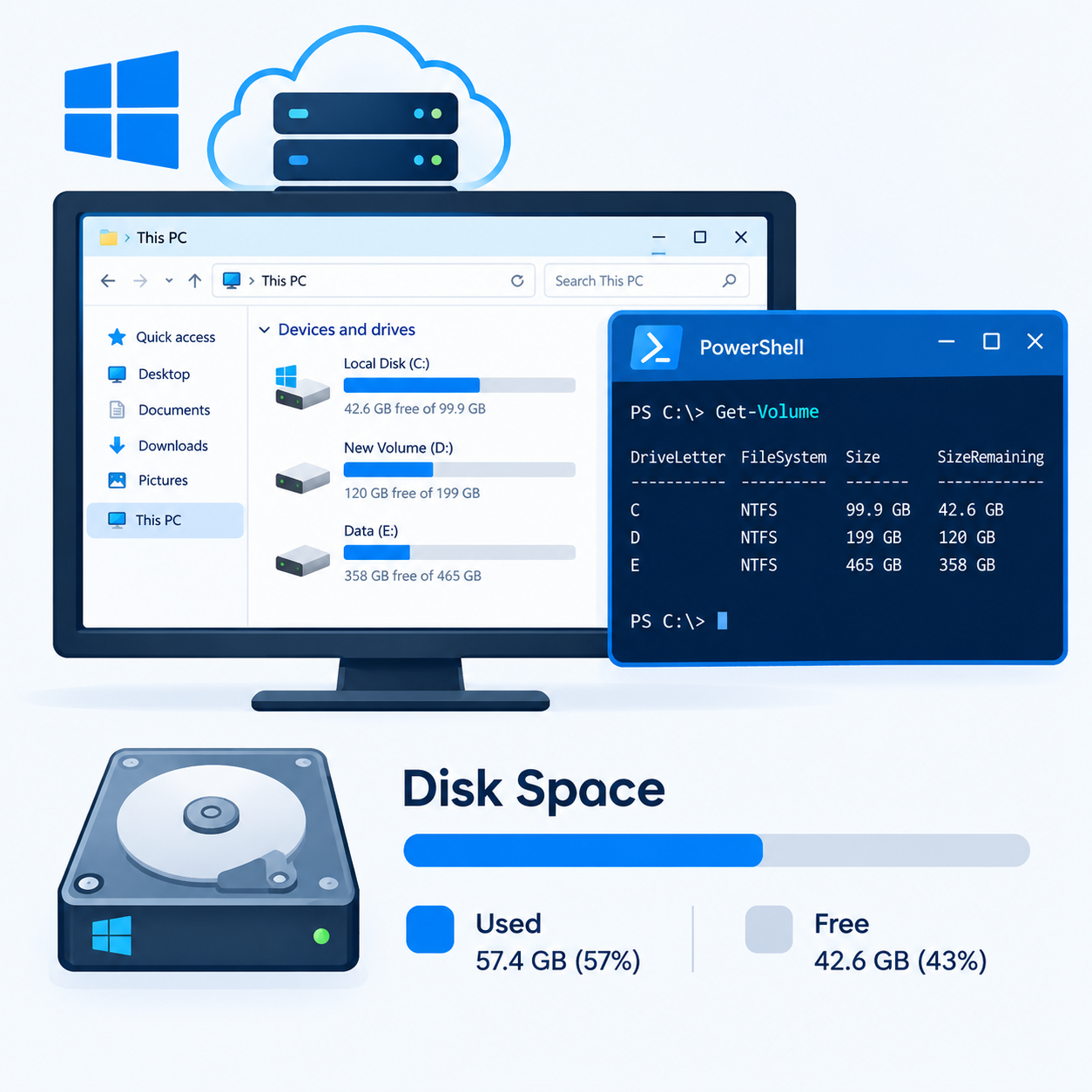
Using File Explorer
- Open File Explorer inside your Windows VPS.
- Select This PC.
- Review the total capacity and available space for each visible drive.
Pay particular attention to the system drive, usually C:. If it becomes nearly full, Windows updates, applications, and other server operations may be affected.
Using PowerShell
Open PowerShell and run:
Get-Volume |
Select-Object DriveLetter, FileSystemLabel,
@{Name=’SizeGiB’;Expression={[math]::Round($_.Size / 1GB, 2)}},
@{Name=’FreeGiB’;Expression={[math]::Round($_.SizeRemaining / 1GB, 2)}}
This command displays the drive letter, volume label, total volume size, and remaining space in gibibytes (GiB).
The command reports volumes that Windows can enumerate. Results may vary depending on the volume type, permissions, and server configuration.
Important: Free space inside a Windows volume is different from the configured capacity of a virtual disk. If you need to confirm the total storage included in your hosting plan, check your provider’s documentation or control panel.
Disk capacity also does not establish disk performance. A volume can have plenty of free space while still experiencing slow read or write operations.
3. Check Windows VPS Resources Using PowerShell
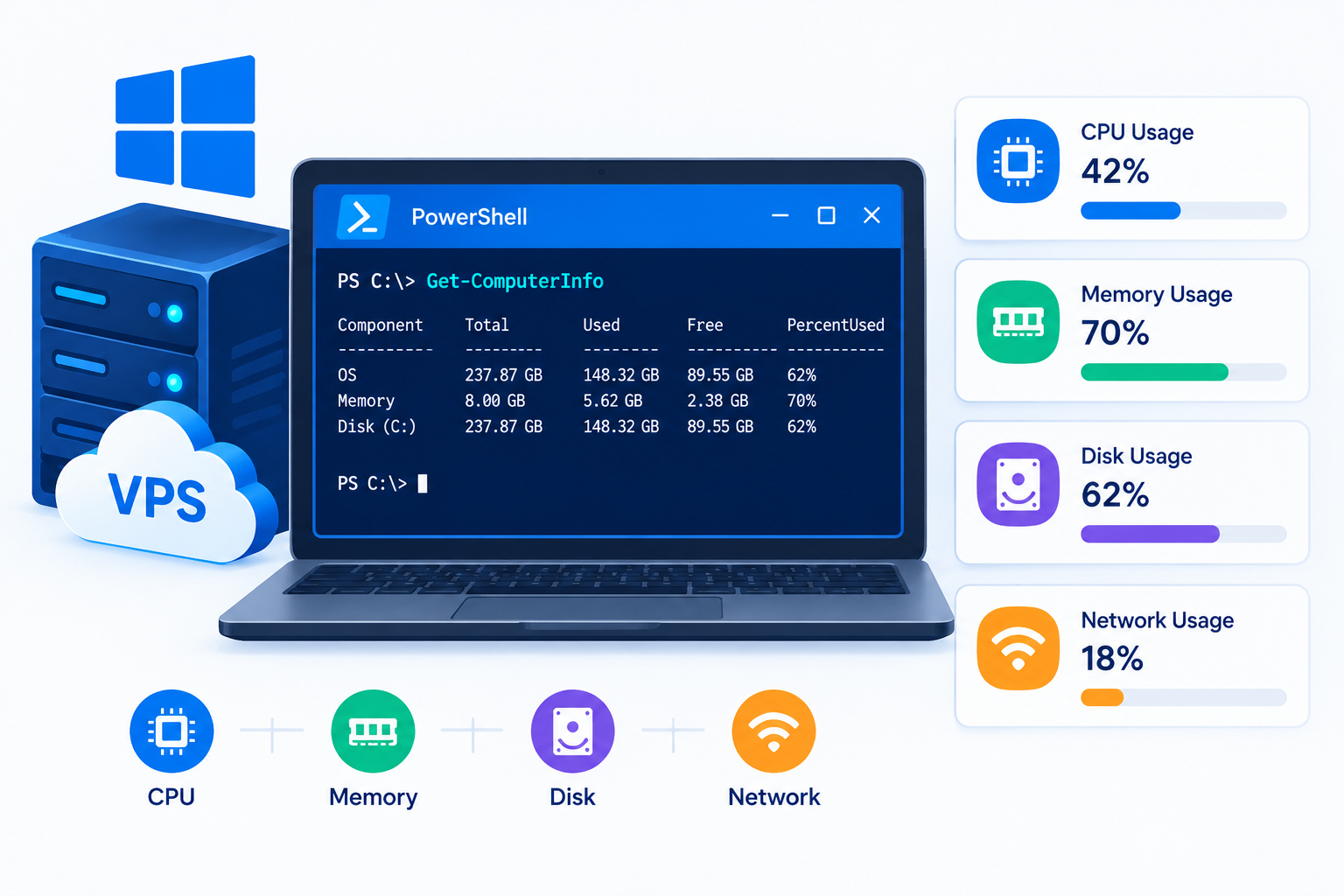
PowerShell provides a convenient way to collect basic information about the resources visible to Windows.
Open PowerShell on your VPS and run the following commands.
Check total and free memory
Get-CimInstance Win32_OperatingSystem |
Select-Object `
@{Name=’TotalRAM_GiB’;Expression={[math]::Round($_.TotalVisibleMemorySize / 1MB, 2)}},
@{Name=’FreeRAM_GiB’;Expression={[math]::Round($_.FreePhysicalMemory / 1MB, 2)}}
The output shows total visible physical memory and free physical memory in GiB.
The command uses Windows memory values reported in kilobytes. Dividing by 1,048,576 converts those values to GiB.
These figures may differ slightly from the RAM advertised in your VPS plan because of operating-system reporting, reserved memory, or the way the virtualization platform presents resources.
Check virtual CPU configuration
Get-CimInstance Win32_Processor |
Select-Object Name, NumberOfCores, NumberOfLogicalProcessors
This command displays processor information visible to Windows, including reported core and logical-processor counts.
On a virtual server, these values describe the processor configuration presented to the virtual machine. They do not establish the physical host’s full capacity or guarantee a particular level of CPU performance.
To monitor current CPU utilization, use Task Manager or Performance Monitor rather than relying on this processor-information command.
Check disk capacity
For a quick overview of Windows volumes, run:
Get-Volume |
Select-Object DriveLetter, Size, SizeRemaining
This displays the total volume size and remaining space reported by Windows.
These commands are read-only and do not change server settings. They are useful for routine checks but do not replace continuous performance monitoring.
4. Check Network Activity on a Windows VPS
Network monitoring helps you understand whether your Windows VPS is sending or receiving data.
Using Task Manager
- Open Task Manager.
- Select Performance.
- Choose the available Ethernet interface.
- Review the displayed network activity and throughput.
The exact interface names and displayed information depend on your Windows Server version and network configuration.
The throughput shown in Task Manager represents current network activity, not total monthly bandwidth consumption.
If you need to check total data transfer or compare usage against the bandwidth allowance in your hosting plan, consult your provider’s reporting tools or control panel, if available.
5. Understand Windows-Visible Resources vs VPS Allocation
One important distinction is that the resources Windows reports are not always identical to the specifications shown in your hosting plan.
For example:
- RAM: Windows reports memory visible to the operating system, which may differ slightly from the advertised allocation.
- CPU: Windows displays the virtual processor configuration, not necessarily the physical host’s complete processing capacity.
- Storage: Windows reports the size and free space of visible volumes, which may not represent the entire configured virtual disk.
- Bandwidth: Task Manager displays current network activity, not your hosting account’s total monthly data transfer.
To confirm your contracted resources, check your VPS plan details or hosting control panel. If the information does not match expectations, ask your hosting provider to clarify the allocation and reporting method.
This distinction helps prevent incorrect conclusions when comparing Windows performance figures with your hosting plan.
6. When Should You Investigate Resource Usage Further?
Routine resource checks are most useful when you compare them with actual server behavior.
Investigate further if you notice:
- CPU usage remaining high for extended periods.
- Consistently low available memory accompanied by increased paging or slow applications.
- The system drive approaching full capacity.
- Unusual network activity or connectivity problems.
- Performance deterioration at predictable times, such as during backups or database operations.
For more detailed investigation, Windows provides two useful tools:
- Resource Monitor: Run resmon to inspect processes, memory, disk activity, and network connections in greater detail.
- Performance Monitor: Run perfmon to examine performance counters and collect data over time.
These tools help you investigate resource usage beyond the summary provided by Task Manager. Their availability and the exact interface may vary by Windows Server installation.
Do not assume that every performance problem results from insufficient VPS resources. Application errors, inefficient database queries, background jobs, and network latency can also affect responsiveness. Detailed troubleshooting should be handled in a dedicated Windows VPS performance guide.
7. Best Practices for Windows VPS Resource Monitoring
Follow these practices to make your resource checks more useful:
- Check CPU, RAM, and disk space regularly.
- Record resource usage when performance problems occur.
- Keep sufficient free disk space for updates, logs, and application data.
- Investigate processes that repeatedly consume excessive resources.
- Use Performance Monitor when you need historical information.
- Compare Windows-visible resources with the allocation documented by your hosting provider.
If your VPS consistently reaches its resource limits, review the workload and determine whether application optimization, configuration changes, or a larger VPS plan is appropriate.
Frequently Asked Questions
