
A Linux server connected to the internet needs more than a default installation to remain secure. Weak SSH authentication, outdated software, unnecessary open ports, excessive user privileges, and insecure applications can expose a VPS to unauthorized access and data loss.
This Linux server hardening checklist helps VPS owners, system administrators, developers, and businesses review essential security settings and reduce common risks. It focuses on practical checks rather than advanced security configuration, with links to dedicated guides for topics that require more detailed instructions.

Linux Server Hardening Checklist
Use this checklist when setting up a new Linux VPS or reviewing an existing server.
- Install operating system and security updates.
- Secure SSH access and restrict root login.
- Use SSH keys and review password authentication settings.
- Configure the firewall and restrict unnecessary ports.
- Remove unused software and services.
- Apply least-privilege access controls.
- Review file and directory permissions.
- Enable and maintain SELinux or AppArmor where supported.
- Secure applications, databases, and administrative panels.
- Enable security logging and monitoring.
- Protect backups and test restoration.
- Schedule regular security reviews.
1. Keep the Linux Operating System Updated
Outdated software can contain known vulnerabilities that attackers may exploit. Regular security updates are therefore a fundamental part of Linux server hardening.
For Ubuntu and Debian-based systems, run:
sudo apt update
sudo apt upgrade
For supported AlmaLinux, Rocky Linux, and other DNF-based systems, run:
sudo dnf upgrade
Before applying significant updates to a production server, review the changes and confirm that your applications remain compatible.
Security checks:
- Use a supported Linux distribution and version.
- Install security patches promptly.
- Consider automatic security updates where appropriate.
- Review update failures and reboot requirements.
- Plan upgrades for operating systems that no longer receive security fixes.
Automatic updates should be configured and monitored rather than simply enabled and forgotten. Some updates require a reboot or additional service restarts.
2. Secure SSH Remote Access
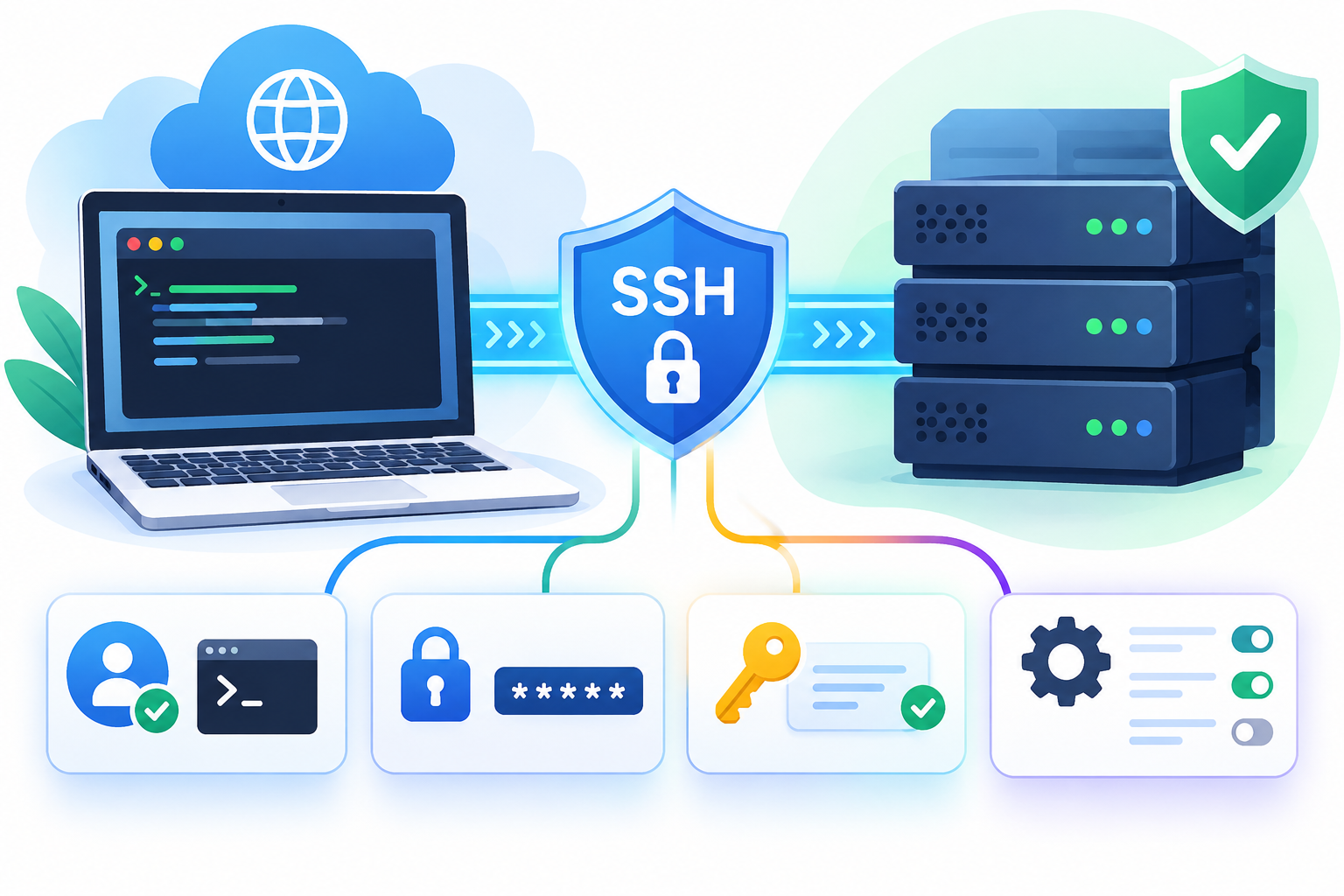
Secure Shell (SSH) allows administrators to manage Linux servers remotely. Because SSH is often exposed to the internet, it should be configured carefully.
Common hardening measures include:
- Disable direct root login over SSH.
- Prefer public-key authentication.
- Disable password authentication when key-based access has been tested successfully and the access policy permits it.
- Restrict SSH access to trusted IP addresses or a VPN where practical.
- Enable multi-factor authentication where supported.
- Remove obsolete or unauthorized SSH keys.
The following settings illustrate two common controls in the SSH server configuration:
PermitRootLogin no
PasswordAuthentication no
Important: Do not apply these settings blindly. First confirm that a separate administrative account has working SSH access and the necessary sudo privileges. Existing configuration snippets or other directives may affect the effective settings.
After making changes, validate the configuration syntax:
sudo sshd -t
To inspect the effective SSH server settings, use:
sudo sshd -T
These commands serve different purposes: sshd -t checks configuration validity, while sshd -T displays effective settings. Additional checks may be necessary when configuration depends on conditional rules.
Keep your existing session open while testing a new connection. Confirm access works before closing the original session or restarting the SSH service.
For further details, consult the official Ubuntu OpenSSH documentation or CreativeON’s dedicated SSH security guide, if available.
3. Configure a Linux Firewall
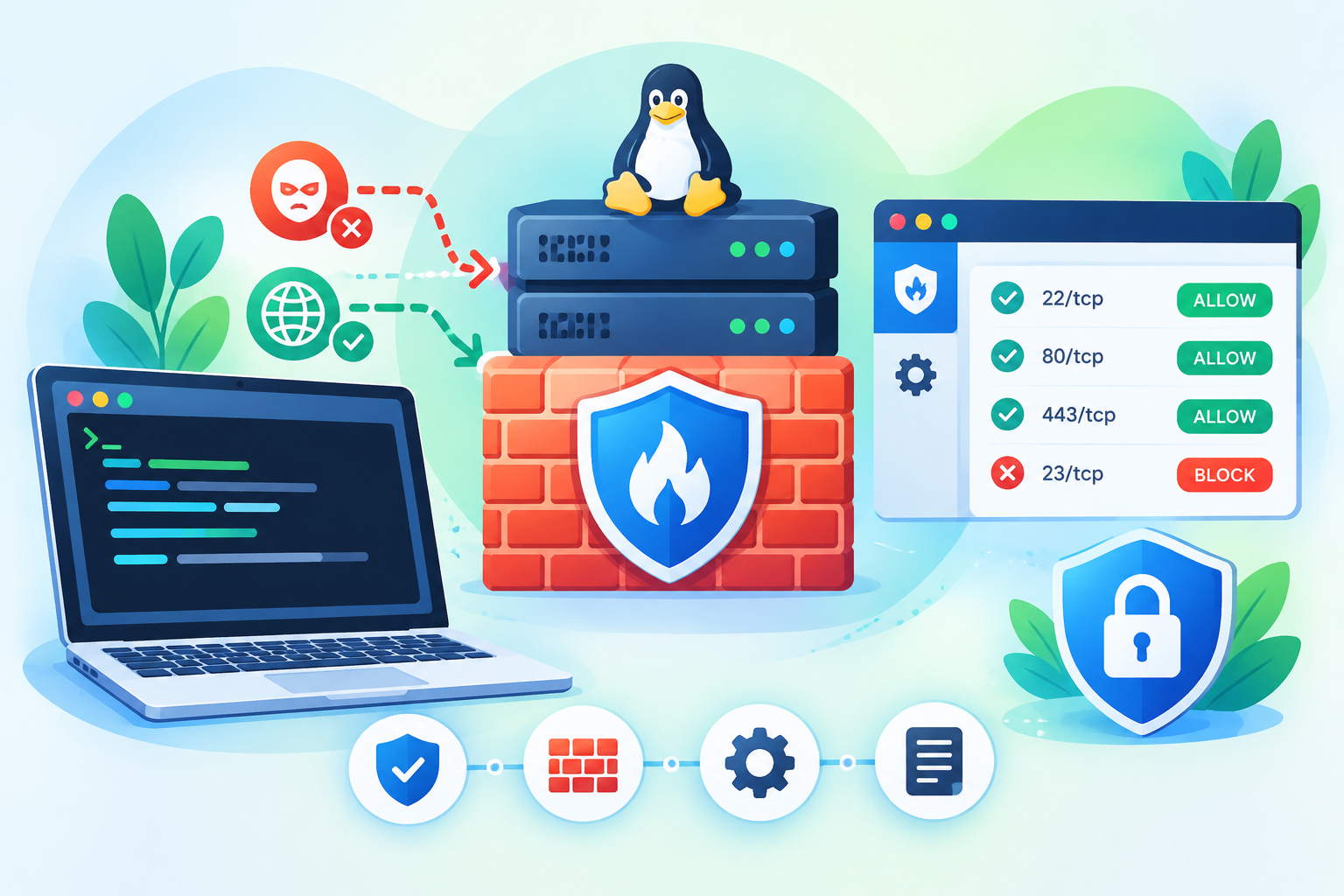
A firewall controls which network connections can reach your VPS. A secure configuration exposes only the services required by your applications.
On Ubuntu systems using UFW, inspect the current rules with:
sudo ufw status verbose
A typical web server might need rules allowing SSH, HTTP, and HTTPS:
sudo ufw allow 22/tcp
sudo ufw allow 80/tcp
sudo ufw allow 443/tcp
These are examples, not a complete firewall policy. Port 22 should be allowed only if SSH uses that port, and SSH access may need to be restricted to trusted IP addresses. A server that does not host a public website may not need ports 80 or 443.
Before enabling UFW or modifying firewall rules:
- Confirm the actual SSH port and permitted management addresses.
- Review existing rules and required application ports.
- Check whether your VPS provider has a separate network firewall or security group.
- Ensure that the changes will not interrupt your remote access.
Security checks:
- Identify unnecessary publicly accessible ports.
- Prevent direct internet access to databases unless explicitly required.
- Restrict administrative panels to trusted networks where practical.
- Remove obsolete firewall rules.
- Confirm that services listen only on the interfaces they need.
For step-by-step configuration, see the dedicated VPS Firewall Setup Guide.
4. Remove Unnecessary Software and Services
Every unnecessary service increases the server’s potential attack surface. A Linux VPS should run only the software required for its operating system, hosting environment, and applications.
List running services with:
systemctl –type=service –state=running
Review listening network sockets with:
sudo ss -tulpn
The second command helps identify services listening for network connections and, where permissions allow, their associated processes. Not every listening service is exposed to the public internet; check the listening address and relevant firewall rules.
Before disabling or uninstalling a service:
- Confirm that no application or hosting component depends on it.
- Identify unfamiliar processes before taking action.
- Remove unused applications and obsolete software versions.
- Recheck running services and listening ports after changes.
Avoid executing untrusted installation scripts with root privileges. Obtain software from trusted repositories or verified project sources.
5. Apply the Principle of Least Privilege
Every Linux account should have only the permissions required for its assigned tasks. Using root for routine administration increases the potential impact of mistakes and compromised applications.
Recommended practices include:
- Create individual accounts for administrators.
- Use sudo for authorized administrative operations.
- Restrict membership in privileged groups.
- Remove accounts that no longer require access.
- Avoid sharing administrative credentials.
- Review service accounts and scheduled tasks for excessive permissions.
To list local account entries, run:
getent passwd
This command provides an account inventory, but it does not identify all administrators by itself. Review privileged groups, sudoers configuration, and relevant access-control policies separately.
Also remove obsolete SSH keys and review which users can access sensitive applications, backups, and administrative panels.
6. Review File and Directory Permissions
Incorrect file permissions can expose private keys, application credentials, configuration files, and customer data.
Pay particular attention to:
- SSH private keys and authorized-key files.
- Application configuration files containing secrets.
- Database credentials and environment files.
- Backup directories and database exports.
- Directories containing private documents or customer uploads.
Use appropriate ownership and permissions for each application. Avoid making files or directories world-writable merely to fix an access error.
Do not apply broad recursive permission changes to system directories or application files without understanding their ownership and operational requirements. Incorrect changes can break services or introduce additional security problems.
For hosted websites, review file ownership and access between individual site accounts to reduce the risk of one compromised application affecting others.
7. Enable SELinux or AppArmor
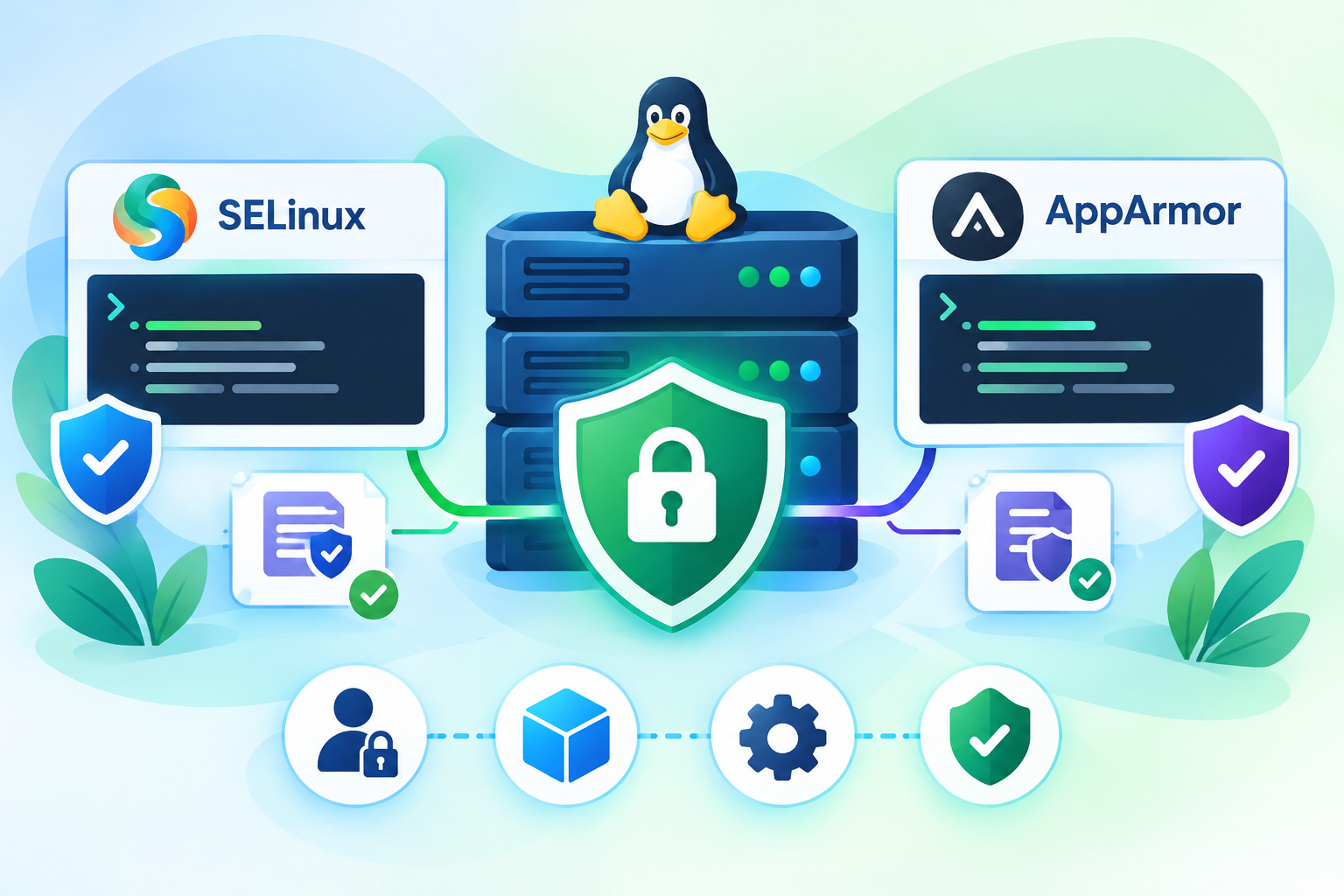
SELinux and AppArmor provide additional access controls that can restrict what applications and processes are allowed to do.
- SELinux is commonly used on Red Hat Enterprise Linux and related distributions.
- AppArmor is commonly used on Ubuntu and some other Linux distributions.
Check which framework is supported by your operating system and review its current status. Where a framework is already enabled, preserve its protections and investigate policy violations before changing enforcement settings.
Do not disable SELinux or AppArmor simply to make an application work. Identify the underlying access or policy issue and apply the narrowest appropriate correction.
Detailed policy configuration belongs in a dedicated operating-system security guide rather than this general checklist.
8. Secure Applications and Databases
A well-configured operating system cannot compensate for an insecure website, vulnerable plugin, exposed database, or poorly protected control panel.
Review the applications and services running on your VPS.
- Update web servers, application runtimes, frameworks, and plugins.
- Remove unused applications, test installations, and abandoned plugins.
- Use strong, unique database and administrative credentials.
- Restrict database access to trusted hosts or local interfaces where possible.
- Protect application secrets and environment files.
- Use HTTPS for websites and services that transmit sensitive information.
- Separate development and testing environments from production systems.
If your VPS hosts WordPress websites, review user roles, plugin updates, file ownership, and application-specific security settings.
For suspected infections, unfamiliar processes, or other signs of compromise, use a dedicated VPS Malware Detection and Cleanup Guide rather than treating this checklist as an incident-response procedure.
9. Enable Security Logging and Monitoring
Security logs can help administrators identify failed login attempts, unexpected account changes, service errors, and suspicious activity.
On systems using systemd, the following command displays warning-level and more severe messages from the current boot:
sudo journalctl -p warning -b
This is a general system-health check, not a comprehensive security audit. Review authentication-specific logs or journal entries to investigate login activity. Log locations and available events depend on the distribution and logging configuration.
Monitor for:
- Repeated failed authentication attempts.
- Unexpected successful logins.
- New or modified privileged accounts.
- Unfamiliar listening ports or services.
- Unexpected changes to critical files.
- Unusual CPU, memory, or network activity.
Configure appropriate log retention and rotation to prevent logs from consuming excessive disk space. For production environments, centralized logging and alerts can help preserve visibility when a server becomes unavailable.
For detailed monitoring configuration and alerting, see the VPS Monitoring Guide.
10. Protect Backups and Test Restoration
Backups are essential for recovering from hardware failure, accidental deletion, ransomware, and other incidents.
Review your VPS backup arrangements to confirm that:
- Important data and configuration files are backed up regularly.
- At least one backup copy is stored separately from the primary server.
- Backups are encrypted where appropriate.
- Backup credentials and permissions are restricted.
- Retention policies preserve sufficient recovery points.
- Restoration is tested periodically.
Where practical, keep an isolated or immutable backup copy to reduce the risk that an attacker who compromises the server can delete every recovery point.
A successful backup job does not automatically guarantee successful recovery. Test restoring important files, databases, and application components.
For backup schedules, retention, and recovery planning, consult the dedicated VPS Backup and Disaster Recovery Guide.
11. Protect Credentials and Administrative Access
Exposed credentials can undermine other security controls. Review how administrators, applications, and external services authenticate to your VPS.
- Use unique, strong passwords for accounts that require them.
- Store credentials in an approved password manager or secrets-management system.
- Avoid placing passwords, API keys, and private keys in public repositories or scripts.
- Rotate credentials when exposure is suspected or access responsibilities change.
- Remove obsolete SSH keys and access tokens.
- Enable multi-factor authentication on administrative services where available.
- Restrict access to hosting panels, cloud dashboards, and backup systems.
Changing the default SSH port may reduce routine automated scanning noise, but it does not replace strong authentication, access restrictions, or firewall controls.
12. Schedule Regular Security Reviews
Linux server hardening is an ongoing process. New vulnerabilities, application deployments, staff changes, and configuration updates can introduce new risks.
Establish a recurring review covering:
- Operating system and application patch status.
- SSH settings and administrative access.
- Firewall rules and exposed ports.
- Running services and listening sockets.
- User accounts, privileges, and authentication keys.
- Security logs and monitoring alerts.
- Backup completion and restoration results.
- Changes to critical configurations.
Repeat the review after significant migrations, major updates, new application deployments, or suspected security incidents.
For servers with regulatory or contractual security requirements, use an appropriate security baseline and configuration-assessment process. Apply controls according to the operating system, workload, and required standard.
Final Linux Server Hardening Verification Checklist
Before completing your initial security review, confirm that:
- The server runs a supported and patched operating system.
- Secure administrative SSH access has been tested.
- Root login and authentication settings follow the access policy.
- Only required network services are accessible.
- Unnecessary software and services have been removed or disabled.
- User accounts and permissions follow least-privilege principles.
- SELinux or AppArmor is appropriately configured where supported.
- Applications and databases are updated and protected.
- Security logs are available and important events can be investigated.
- Backups are protected and restoration has been tested.
- A recurring security review schedule is in place.
Frequently Asked Questions
