
After installing Windows Server on a VPS or dedicated server, a few important settings should be reviewed before you deploy websites, applications, databases, or other workloads.
The initial configuration normally includes checking the network, setting the server name, installing Windows Updates, configuring the time zone, reviewing user access, setting up Remote Desktop, checking Windows Firewall, and installing only the roles and features your workload requires.
This guide focuses on those essential post-installation tasks without going into application-specific configuration such as IIS, SQL Server, or Active Directory.
What Should You Configure After Installing Windows Server?
A typical Windows Server post-installation checklist includes:
- Check the initial server configuration
- Rename the server
- Verify network settings
- Configure the date, time, and time zone
- Install Windows Updates
- Check Windows activation
- Review administrator and user accounts
- Configure Remote Desktop
- Review Windows Firewall
- Enable remote management if required
- Install required server roles and features
- Verify the server before deployment
You do not necessarily need to change every available setting. Configure the server according to its intended workload.
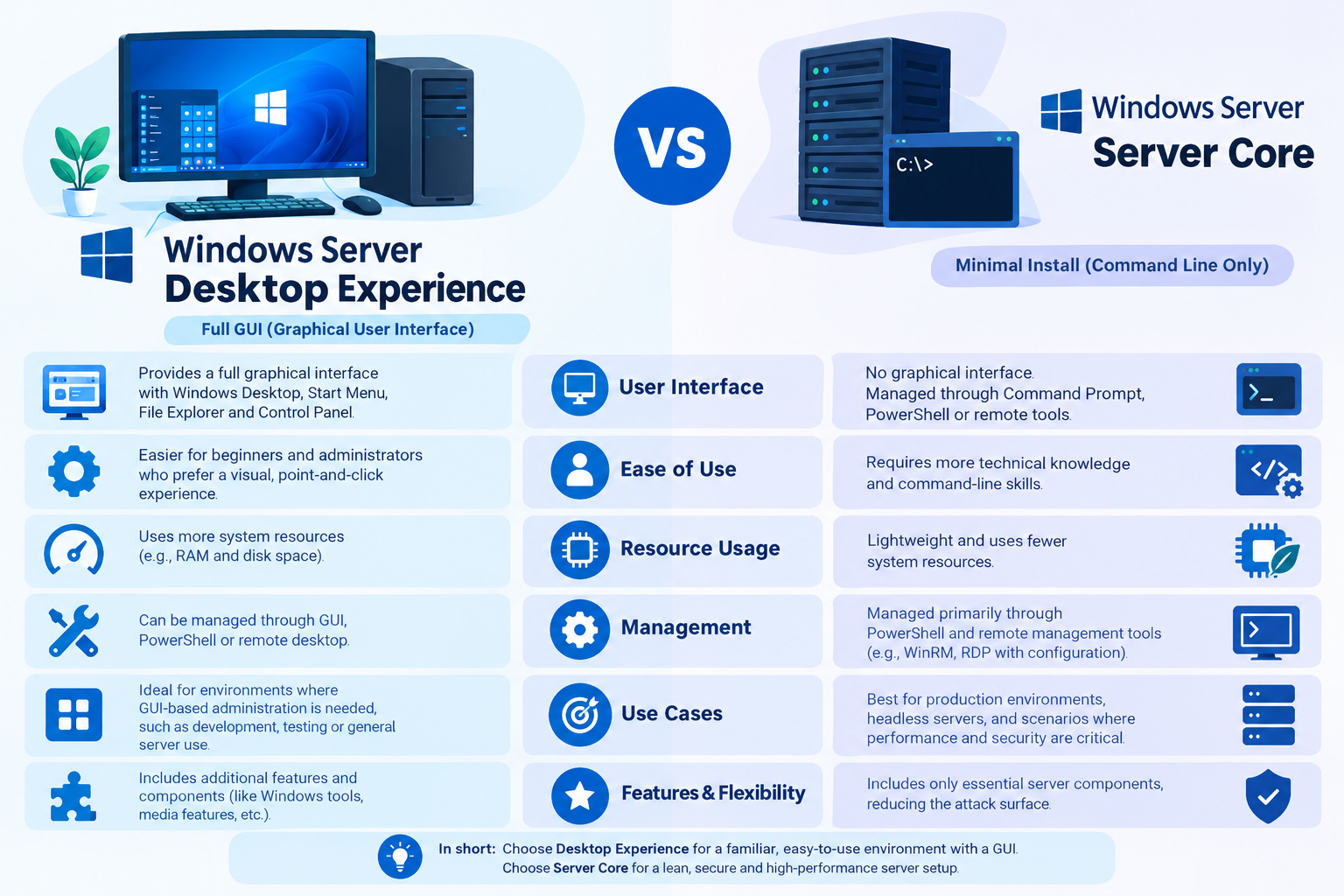
Windows Server Desktop Experience vs. Server Core
The configuration process depends partly on how Windows Server was installed.
Desktop Experience provides a graphical interface and commonly uses tools such as Server Manager and PowerShell for administration.
Server Core has a minimal interface and relies much more heavily on command-line administration. Microsoft identifies SConfig as a primary tool for configuring common Server Core settings, including networking, updates, Remote Desktop, computer name, date and time, remote management, and activation.
This means the exact screens and menus you see may differ between Windows Server installations.
1. Check the Initial Server Configuration
Before changing anything, check the current state of the server.
Verify:
- Server name
- IP address
- Network adapter
- DNS configuration
- Internet connectivity
- Windows activation
- Windows Update status
- Current time and time zone
On a graphical Windows Server installation, Server Manager provides a central place to review many local server properties.
On Server Core, SConfig can be used for many of these initial configuration tasks.
Starting with a quick assessment helps prevent unnecessary configuration changes.
2. Rename the Windows Server
A meaningful server name makes administration easier, particularly when managing multiple Windows VPS instances.
For example:
WIN-8F3A21C7
could be changed to:
WEB-SERVER-01
or:
APP-SERVER-01
In Server Manager, the Local Server page provides access to the computer-name setting.
Rename the server with PowerShell
Open PowerShell as Administrator:
Rename-Computer -NewName “WEB-SERVER-01” -Restart
Replace WEB-SERVER-01 with your preferred name.
The server will restart after the command.
Naming tip
If you manage several servers, use a consistent naming convention such as:
- WEB-01
- APP-01
- DB-01
- FILE-01
Choose the name carefully because changing it later can be inconvenient once applications and services have been configured.
3. Verify Network Configuration
A Windows VPS normally receives its network configuration from the hosting or virtualization environment. Therefore, verify the existing configuration before changing it.
Check:
- IP address
- Subnet or prefix
- Default gateway
- DNS servers
- Network adapter status
- Internet connectivity
- DNS resolution
You can inspect the current configuration with PowerShell:
Get-NetIPConfiguration
To view network adapters:
Get-NetAdapter
If the server was provisioned by a hosting provider, do not manually change the IP address, gateway, subnet, or DNS values unless you know the values required by that environment.
If the server cannot reach the internet, verify the network configuration before troubleshooting applications.
4. Set the Correct Date, Time, and Time Zone
Incorrect time settings can cause problems with:
- Scheduled tasks
- Application logs
- Authentication
- Certificates
- Monitoring
- Backup schedules
Check the current time zone with PowerShell:
Get-TimeZone
To view available time zones:
Get-TimeZone -ListAvailable
Select the time zone appropriate for the server’s intended operation.
For servers supporting applications or users in multiple regions, choose the time-zone configuration deliberately rather than assuming it should match the administrator’s local computer.
5. Install Windows Updates
A newly installed Windows Server should be checked for available updates before production deployment.
Updates can include:
- Security fixes
- Reliability improvements
- Bug fixes
- Servicing updates
- Other Microsoft updates
On Server Core, Windows Updates can be managed through SConfig. Microsoft lists update configuration as one of the standard SConfig tasks.
After installing updates, the server may require a restart.
For a production server, schedule updates and restarts around the workload running on the machine.
Do not disable Windows Update simply because you want to avoid restarts. Instead, use an appropriate update and maintenance schedule.
6. Check Windows Activation
Verify that Windows Server is properly activated before deploying production workloads.
Activation may already be handled by the hosting provider or deployment environment, so do not change licensing settings unnecessarily.
Microsoft includes Windows activation among the standard post-installation configuration tasks available through SConfig.
If activation is not as expected, check your Windows license or hosting provider’s instructions.
7. Review Administrator and User Accounts
Review the accounts that can access the server before putting it into production.
Check:
- Local administrator accounts
- Standard user accounts
- Remote Desktop users
- Service accounts
- Unnecessary or unused accounts
Avoid giving administrator privileges to users who do not require them.
For a simple Windows VPS, the goal is not to create a complicated identity-management system at this stage. Instead, make sure the accounts that exist are intentional and have appropriate permissions.
If the server will later be joined to an Active Directory environment, account and group management may follow a different process.
8. Configure Remote Desktop
For many Windows VPS deployments, Remote Desktop Protocol (RDP) is the main method used for graphical remote administration.
Before relying on RDP, verify that:
- Remote Desktop is enabled.
- The user is permitted to connect.
- Windows Firewall permits the required connection.
- Any external firewall or network security layer also permits it.
On Server Core, SConfig provides an option for enabling Remote Desktop and allows you to choose connections that require Network Level Authentication (NLA). Microsoft describes NLA as the more secure option compared with allowing clients running any version of Remote Desktop software.
Test RDP connectivity
From another Windows machine, you can test TCP connectivity to the server:
Test-NetConnection -ComputerName SERVER-IP -Port 3389
Replace SERVER-IP with the server’s IP address.
If the connection fails, check the network path, firewall rules, RDP configuration, and user permissions.
Do not disable Windows Firewall simply to make RDP work.
If RDP is exposed to the public internet, use strong authentication and restrict access where your hosting or network environment allows it.
9. Review Windows Firewall
Windows Firewall should normally remain enabled.
Instead of disabling it when an application or connection fails, identify the specific port or rule that is required.
Depending on the server’s workload, commonly required traffic might include:
- RDP
- HTTP
- HTTPS
- DNS
- Application-specific ports
Only allow traffic that the server actually needs.
You can view firewall profiles with:
Get-NetFirewallProfile
To review existing firewall rules:
Get-NetFirewallRule
A fresh Windows Server should not be treated as a reason to open large ranges of ports. Configure firewall rules according to the services you actually deploy.
10. Configure Remote Management Only If Required
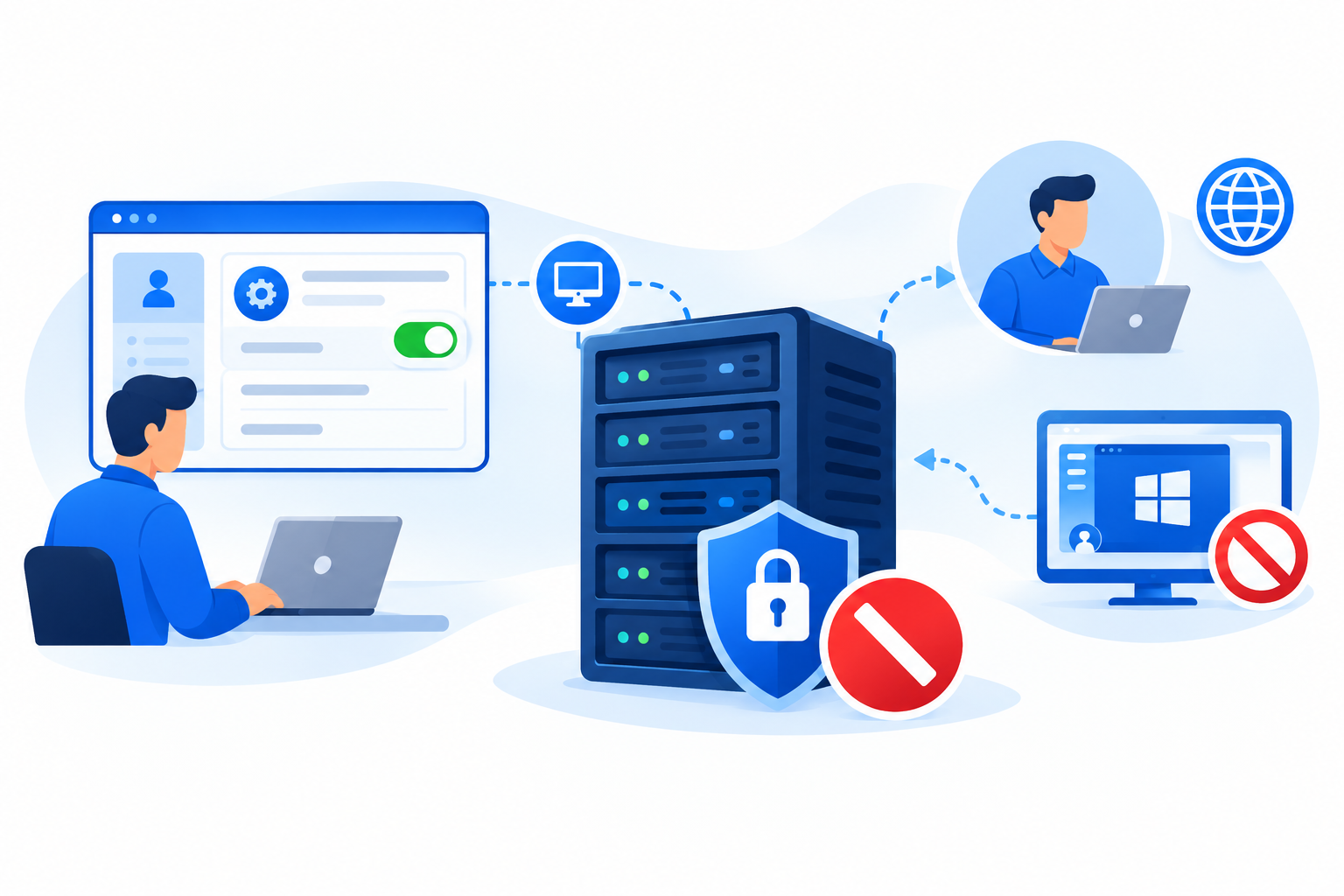
Remote Desktop and remote management are not the same thing.
RDP provides a remote graphical session.
Windows Server remote-management tools can allow administrators to manage servers through tools such as Server Manager and Windows PowerShell without relying on an interactive RDP session.
If Server Manager remote management is required, Microsoft documents the following command:
Configure-SMremoting.exe -Enable
Run it from an elevated PowerShell or Command Prompt session.
Do not enable remote-management services simply because they are available. Configure them when they are part of your administration workflow.
11. Install Only the Required Server Roles and Features
Install roles and features according to the server’s intended purpose.
For example:
| Workload | Relevant Windows Server component |
| Web server | IIS |
| DNS infrastructure | DNS Server role |
| File sharing | File and Storage Services |
| Directory services | Active Directory Domain Services |
| Application hosting | Required Windows roles, features, and runtimes |
| Database server | Required database platform and supporting components |
Windows Server provides Server Manager and PowerShell for adding roles and features. Microsoft documents Get-WindowsFeature for reviewing available roles and features and Install-WindowsFeature for installing them.
To review available roles and features:
Get-WindowsFeature
Do not install every available role simply because it is available. Unnecessary components add administrative complexity and may introduce services that the server does not need.
Detailed procedures for IIS, SQL Server, Active Directory, and other applications should remain in their own dedicated guides.
12. Verify the Server Before Deployment
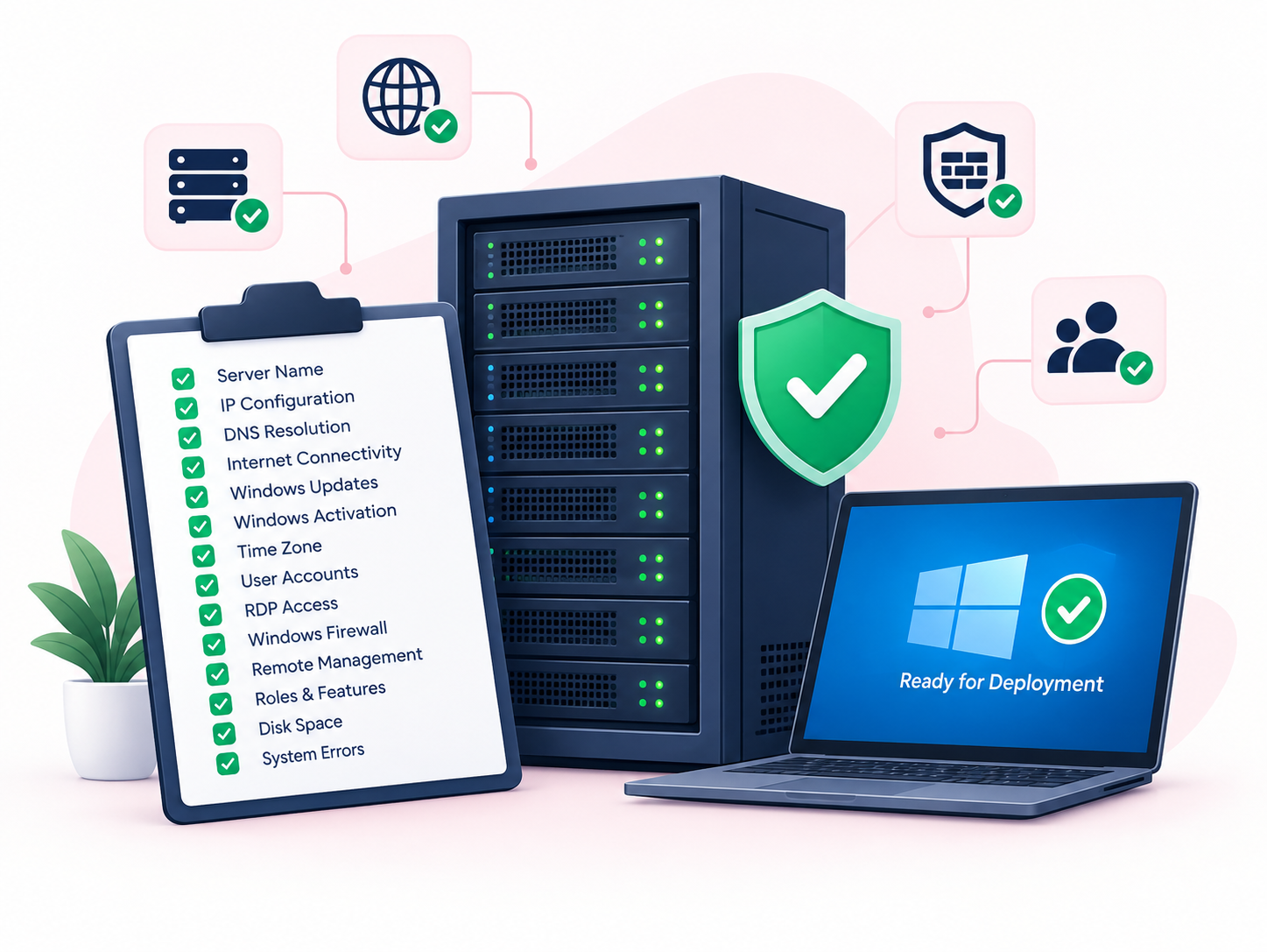
After completing the initial configuration, perform a final check.
Basic verification checklist
- Server name is correct
- IP configuration is correct
- DNS resolution works
- Internet connectivity works
- Windows Updates are installed
- Windows activation is correct
- Time zone is correct
- Required user accounts exist
- RDP works if required
- Windows Firewall is enabled
- Required remote management is configured
- Required roles and features are installed
- Adequate disk space is available
- No important system errors have been overlooked
You can use Server Manager, PowerShell, Event Viewer, and other built-in Windows administration tools for these checks.
At this point, the server should be ready for workload-specific configuration.
Common Mistakes After Installing Windows Server
Changing network settings without checking the provider configuration
On a Windows VPS, incorrect IP, gateway, subnet, or DNS settings can disconnect the server.
Disabling Windows Firewall
Disabling the firewall may appear to solve a connectivity problem, but it removes an important security control. Find and configure the required firewall rule instead.
Installing unnecessary roles
Only install the roles and features required by the server’s workload.
Using administrator privileges for everything
Give users and services only the permissions they actually need.
Skipping Windows Updates
A newly installed Windows Server should still be checked for available updates.
Changing several settings without testing
Make important changes methodically. After changing networking, RDP, firewall, or other access-related settings, verify that you can still administer the server.
Before Installing Your Application
Before moving from basic server configuration to application deployment, make sure the following are working:
- Network connectivity
- DNS resolution
- Windows Updates
- Server name
- Correct time zone
- User access
- Remote Desktop, if required
- Windows Firewall
- Required Windows roles and features
Once these checks pass, you can move on to workload-specific tasks such as installing IIS, configuring a database platform, or deploying an application.
Those tasks should be handled in dedicated guides because they involve configuration beyond the initial Windows Server setup.
Frequently Asked Questions
