
Thinking about making your WordPress website smarter, faster, and more automated?
Guess what? OpenClaw can help you do exactly that.
Now, I know it might sound technical at first… but don’t worry. We’ll go step by step, in simple words, just like a friendly chat. By the end of this guide, you’ll clearly understand how to set up OpenClaw for WordPress — even if you’re not a tech expert.
Let’s get started.
What is OpenClaw? (Simple Explanation)
Let’s keep this super easy.
OpenClaw is a tool that runs on your server and helps automate tasks.
Think of it like a smart helper for your website.
Instead of doing everything manually, OpenClaw can:
- Handle repetitive tasks
- Run automated scripts
- Help manage data and workflows
- Save you time
Real-life example:
Imagine you run a blog. Instead of updating content manually every day, OpenClaw can help automate parts of that process.
Isn’t that neat?
Why Use OpenClaw with WordPress?
You might be wondering…
“Why should I even use OpenClaw?”
Here’s why:
Saves Time
No need to repeat the same tasks again and again.
Improves Efficiency
Your website runs smoother with automation.
Better Control
You manage things directly from your server.
Works Great with VPS
If you’re using a VPS Server, OpenClaw becomes even more powerful.
Why VPS Hosting is Important for OpenClaw
Let’s talk about something very important.
OpenClaw works best on a VPS Server, not shared hosting.
Why?
Because it needs:
- Server control
- More resources (RAM, CPU)
- Command-line access
VPS Hosting Benefits for OpenClaw
If you’re planning to buy VPS, here’s what you get:
- Faster performance
- Full control over your server
- Better security
- Smooth OpenClaw setup
Many users looking for the best VPS in Pakistan choose VPS because it gives them freedom and power.
Cheap VPS in Pakistan – Is It Enough?
Good question.
Yes, a cheap VPS in Pakistan can work — but make sure:
- At least 2GB RAM
- SSD storage
- Stable uptime
Otherwise, OpenClaw may run slow.
Windows VPS vs Linux VPS
You can use both, but:
- Linux VPS → Recommended (better support)
- Windows VPS → Works, but slightly heavier
Requirements Before Setting Up OpenClaw
Before we start, make sure you have:
- A working WordPress website
- A VPS Server (recommended)
- SSH access to your server
- Basic understanding of commands
- Python installed
Don’t worry — I’ll guide you step by step.
Step-by-Step: How to Set Up OpenClaw for WordPress
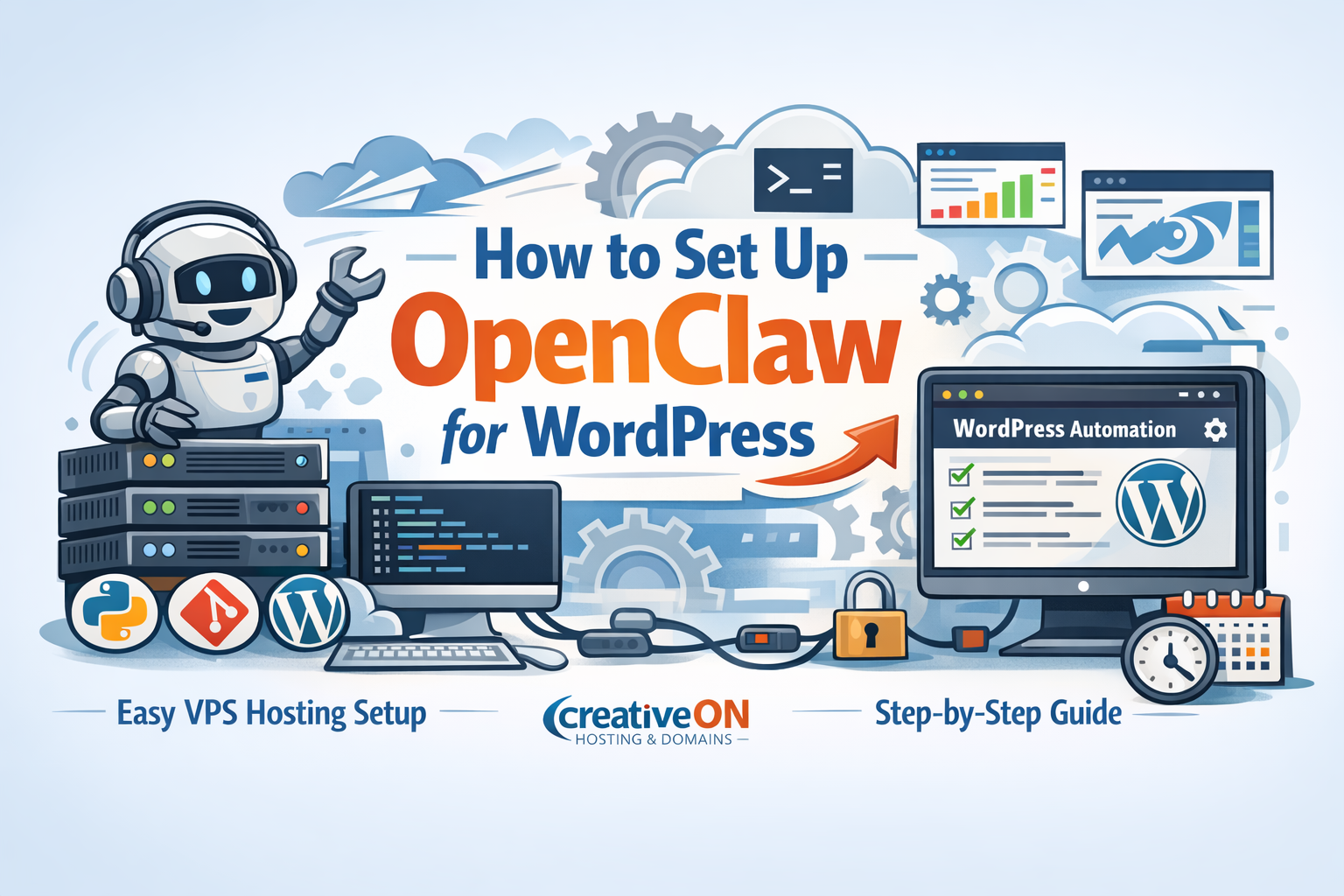
Now comes the real part. Follow carefully.
Step 1: Connect to Your VPS Server
First, log into your server.
Use SSH:
ssh username@your-server-ip
This connects you to your VPS.
Step 2: Update Your Server
Always start with updates.
sudo apt update && sudo apt upgrade -y
This keeps your system clean and ready.
Step 3: Install Required Tools
OpenClaw needs some tools to run.
Install them:
sudo apt install git python3 python3-pip -y
- Git → downloads OpenClaw
- Python → runs OpenClaw
- Pip → installs dependencies
Step 4: Download OpenClaw
Now download OpenClaw from its repository:
git clone https://github.com/openclaw/openclaw.git
Go into the folder:
cd openclaw
Step 5: Install Dependencies
Run:
pip3 install -r requirements.txt
This installs everything OpenClaw needs.
Step 6: Configure OpenClaw
Now you’ll set it up.
Look for config file (example):
nano config.yaml
Here you can:
- Add settings
- Define tasks
- Set automation rules
Keep it simple at first.
Step 7: Connect OpenClaw with WordPress
Now link your WordPress site.
This may involve:
- API keys
- Database access
- Website URL
Depends on how you plan to use OpenClaw.
Step 8: Run OpenClaw
Start it:
python3 main.py
Done. Your OpenClaw is now running.
Common Use Cases of OpenClaw
Let’s make this practical.
Here’s how people use it:
Automation Tasks
- Schedule updates
- Run scripts automatically
Data Handling
- Fetch or process content
Website Monitoring
- Track performance
Bulk Operations
- Update multiple posts
Common Problems (and Easy Fixes)
Don’t worry if something goes wrong — it happens.
Problem: Command not found
Fix:
Make sure Python and pip are installed.
Problem: Permission denied
Fix:
sudo
Problem: Slow performance
Fix:
Upgrade your VPS Hosting
Problem: Setup confusion
Fix:
Follow steps slowly, one by one.
Is OpenClaw Safe for WordPress?
Yes — if used properly.
Tips:
- Don’t give full access blindly
- Keep backups
- Monitor activity
Think of it like giving keys to a helper — trust, but stay aware.
Best Hosting Choice for OpenClaw in Pakistan
Here’s the truth…
Your hosting makes a big difference.
If your hosting is weak:
- OpenClaw will lag
- Automation may fail
Why Choose CreativeON?
At CreativeON, we make things simple and reliable.
We are:
- One of the best hosting providers in Pakistan
- Offering powerful VPS Hosting
- Providing Windows VPS and Linux servers
- Google Workspace Official Partner & Reseller
- PKNIC Gold Partner for .PK domains
Trusted by Big Names
We’ve worked with:
- City42
- Channel 24
- QTV
- Chughtai Lab
- Daewoo Pakistan
- Orange Line Metro
And many more.
Why Our Prices Are Lower?
Simple.
We are official Google partners, so we keep margins low to help businesses grow.
If you’re planning to:
- Buy VPS
- Get a cheap VPS in Pakistan
- Or upgrade your VPS Server
CreativeON is a great choice.
Helpful Tips for Beginners
Here are some easy tips:
- Start small — don’t overcomplicate
- Always keep backups
- Use Linux VPS for better performance
- Test changes before going live
- Learn basic commands
Remember: Every expert was once a beginner.
Frequently Asked Questions (FAQs)
Do I need coding skills?
Not really. Basic commands are enough.
Can I use OpenClaw on shared hosting?
Not recommended.
Is VPS Hosting required?
Yes, for best results.
Can I use Windows VPS?
Yes, but Linux VPS is better.
Is OpenClaw free?
Mostly yes (depends on version and setup).
Quick Summary
Let’s wrap it up:
- OpenClaw helps automate WordPress tasks
- Best used with VPS Hosting
- Setup involves Python, Git, and server access
- Works great for automation and efficiency
- CreativeON provides reliable VPS solutions in Pakistan
Final Words
Setting up OpenClaw might feel new at first…
But once you try it, you’ll see how powerful it is.
Take it step by step. Don’t rush.
You’ve got this.
