
Accidentally deleted an important file? Maybe a client document, school assignment, or business report?
Don’t panic — you can recover deleted files in Google Drive, and in most cases, it’s easier than you think.
In this guide, we’ll walk through everything step by step — just like a friend helping you out. Whether you’re using a personal account or Google Workspace in Pakistan and UAE, this guide has you covered.
Quick Answer: How to Recover Deleted Files in Google Drive
If you’re in a hurry, here’s the fastest way:
- Open Google Drive
- Click on Trash (Bin)
- Find your file
- Right-click and click Restore
Done. Your file will go back to where it was.
What Happens When You Delete a File in Google Drive?
Let’s make this super simple.
When you delete a file in Google Drive or Google Workspace, it doesn’t disappear immediately.
👉 Instead:
- It goes to Trash
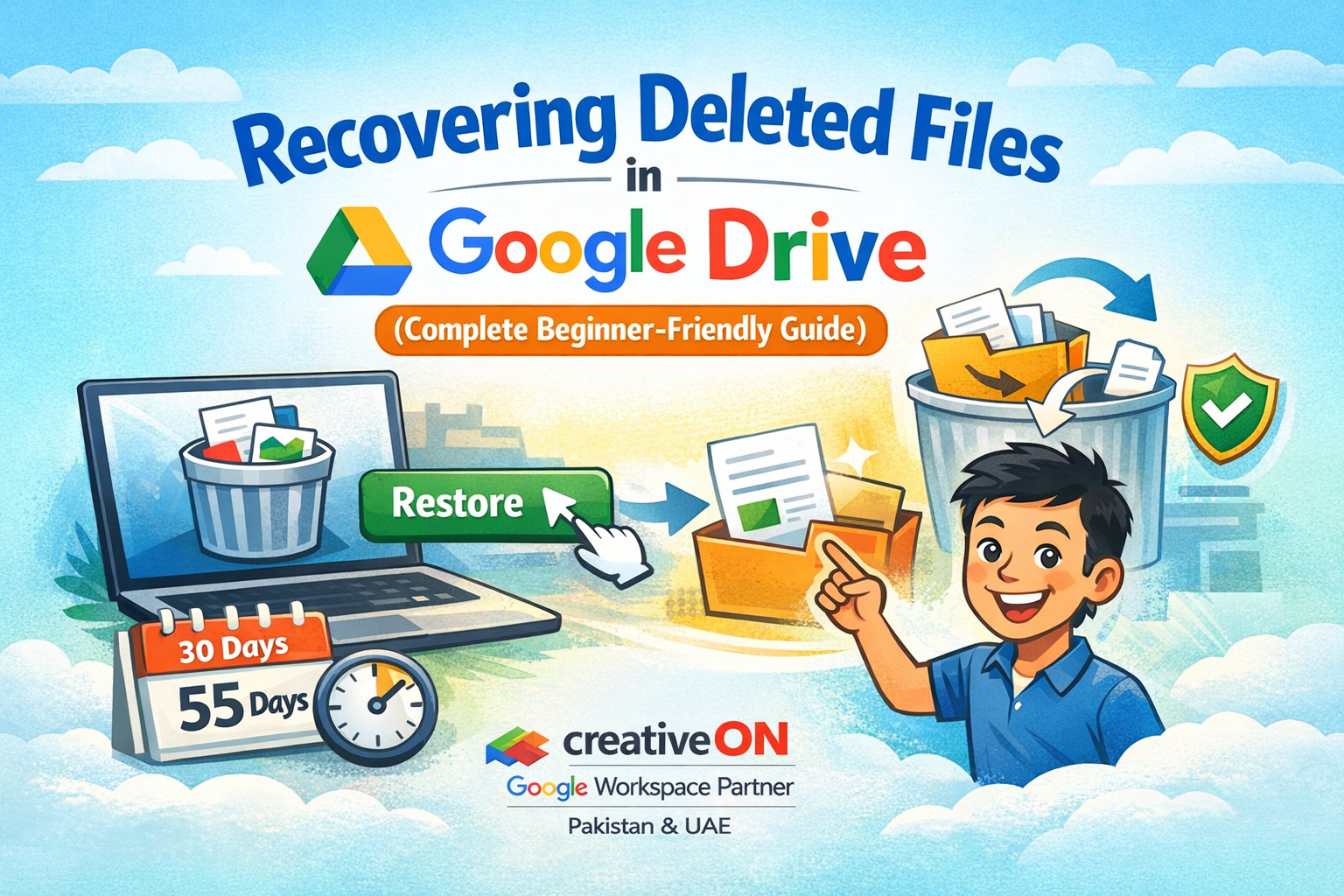
- It stays there for 30 days
- After that, it’s automatically deleted permanently
Think of it like your home dustbin — you still have time before it’s taken out.
Method 1: Recover Deleted Files from Trash (Step-by-Step)
This is the most common and easiest way.
Follow these steps:
- Go to Google Drive
- Click Trash from the left menu
- Find your deleted file
- Right-click on it
- Click Restore
That’s it. Your file will return to its original folder.
Real-Life Example
Let’s say you deleted a project file by mistake.
Instead of stressing:
- Open Trash
- Restore the file
- Continue your work like nothing happened
Simple, right?
Method 2: Recover Permanently Deleted Files (Google Workspace Users)
Now let’s talk about a more serious situation.
What if:
- You emptied the Trash?
- Or 30 days have already passed?
Here’s the good news.
If you’re using Google Workspace
Your admin can still recover the file.
Recovery Timeline
- Trash keeps files → 30 days
- Admin recovery window → +25 days
Total possible recovery time = up to 55 days
What You Should Do
If this happens:
- Contact your admin immediately
- Share:
- File name
- Approximate deletion date
Important: After this period, recovery is usually not possible.
Method 3: Recover Files from Shared Drives
If your file was in a Shared Drive, things work a bit differently.
Key points:
- Files belong to the team, not individuals
- Deleted files go to Shared Drive Trash
- Files stay there for 30 days
How to Recover from Shared Drives
- Open the Shared Drive
- Go to its Trash
- Restore the file (if you have permission)
If not:
- Ask your admin or manager to restore it
Method 4: Contact Support (Last Option)
If your file is extremely important and:
- It’s been deleted permanently
- The admin recovery period has passed
You can try contacting Google support.
Keep this in mind:
- Recovery is not guaranteed
- Support mainly provides guidance, not direct recovery
Who Can Recover What? (Simple Table)
User Type | Can Recover Files? |
Regular User | Yes (within 30 days) |
Google Workspace Admin | Yes (up to 55 days) |
Shared Drive User | Depends on permissions |
Common Mistakes to Avoid
Let’s save you from future trouble.
Avoid these:
- Emptying Trash too quickly
- Ignoring Shared Drive Trash
- Waiting too long to contact admin
- Deleting files without checking
Helpful Tips to Keep Your Files Safe
A few smart habits can save you a lot of stress.
Do this instead:
- Double-check before deleting files
- Keep important files organized in folders
- Use sharing instead of deleting duplicates
- Don’t rush to empty Trash
- Keep backups for critical files
Why Businesses Use Google Workspace for File Safety
If you run a business, file loss can be a big problem.
That’s why many companies choose Google Workspace Pakistan and UAE solutions.
With Google Workspace, you get:
- Professional business emails ([email protected])
- Secure cloud storage
- Easy file recovery options
- Team collaboration tools
- Admin control over users and files
How CreativeON Helps You
At CreativeON, we provide Google Workspace in Pakistan and UAE with full local support.
Why choose us?
- Official Google Workspace Partner & Reseller
- Local offices in Pakistan and UAE
- Fast setup and support
- Guidance for businesses of all sizes
Why Our Prices Are Lower?
Good question.
- We are an official reseller
- We keep our margins low
- We focus on long-term relationships
That’s why we offer competitive Google Workspace pricing in Pakistan and UAE
Google Workspace Plans (Quick Overview)
Choosing the right plan depends on your needs.
Popular options:
- Business Starter – Basic email and storage
- Business Standard – More storage + collaboration tools
- Business Plus – Advanced security and control
Not sure which one to pick? CreativeON can help you decide.
Real-Life Use Case (Business Example)
Imagine this:
A team member deletes a shared file by mistake.
Without Google Workspace:
- File is lost
- Work is delayed
With Google Workspace:
- Admin restores file
- Work continues smoothly
That’s the power of proper file management.
FAQs: Recovering Deleted Files in Google Drive
Can I recover files after 30 days?
Yes, if you’re using Google Workspace and your admin restores it within the extra 25 days.
Can I recover files from my phone?
Yes.
Steps are the same:
- Open Drive
- Go to Trash
- Restore file
Can I recover permanently deleted files?
Only within the admin recovery window. After that, recovery is usually not possible.
Do Shared Drive files follow the same rules?
Mostly yes, but recovery depends on permissions and admin access.
Final Thoughts
Deleting a file by mistake can feel stressful — but now you know it’s usually fixable.
Just remember:
- Check Trash first
- Act quickly
- Contact admin if needed
And if you’re running a business, using Google Workspace in Pakistan and UAE with proper setup can save you from bigger issues later.