
Keep Your Files Safe in Google Workspace (Pakistan & UAE)
Imagine this…
You share an important business file with your team — and suddenly someone edits or deletes something by mistake.
Sounds stressful, right?
That’s exactly why setting permissions and access controls in Google Drive is so important — especially if you’re using Google Workspace in Pakistan or the UAE for business emails and team collaboration.
The good news is, it’s simple once you understand the basics.
Let’s walk through everything step by step in a clear and practical way.
What Are Permissions in Google Drive?
Let’s keep it simple.
Permissions mean control over your files.
They decide:
- Who can open your file
- What they can do inside it
- Whether they can share it further
Think of it like your home:
- Some people can just visit
- Some can give suggestions
- And a few can make changes
Google Drive works in a similar way.
Why Permissions Matter for Businesses
If you’re using Google Workspace in Pakistan or UAE, this isn’t just a small setting — it plays a very important role.
Without proper control, you may face:
- Accidental file edits
- Important data getting deleted
- Sensitive business information being shared
- Team confusion and mistakes
That’s why access control is important for business emails, files, and team collaboration.
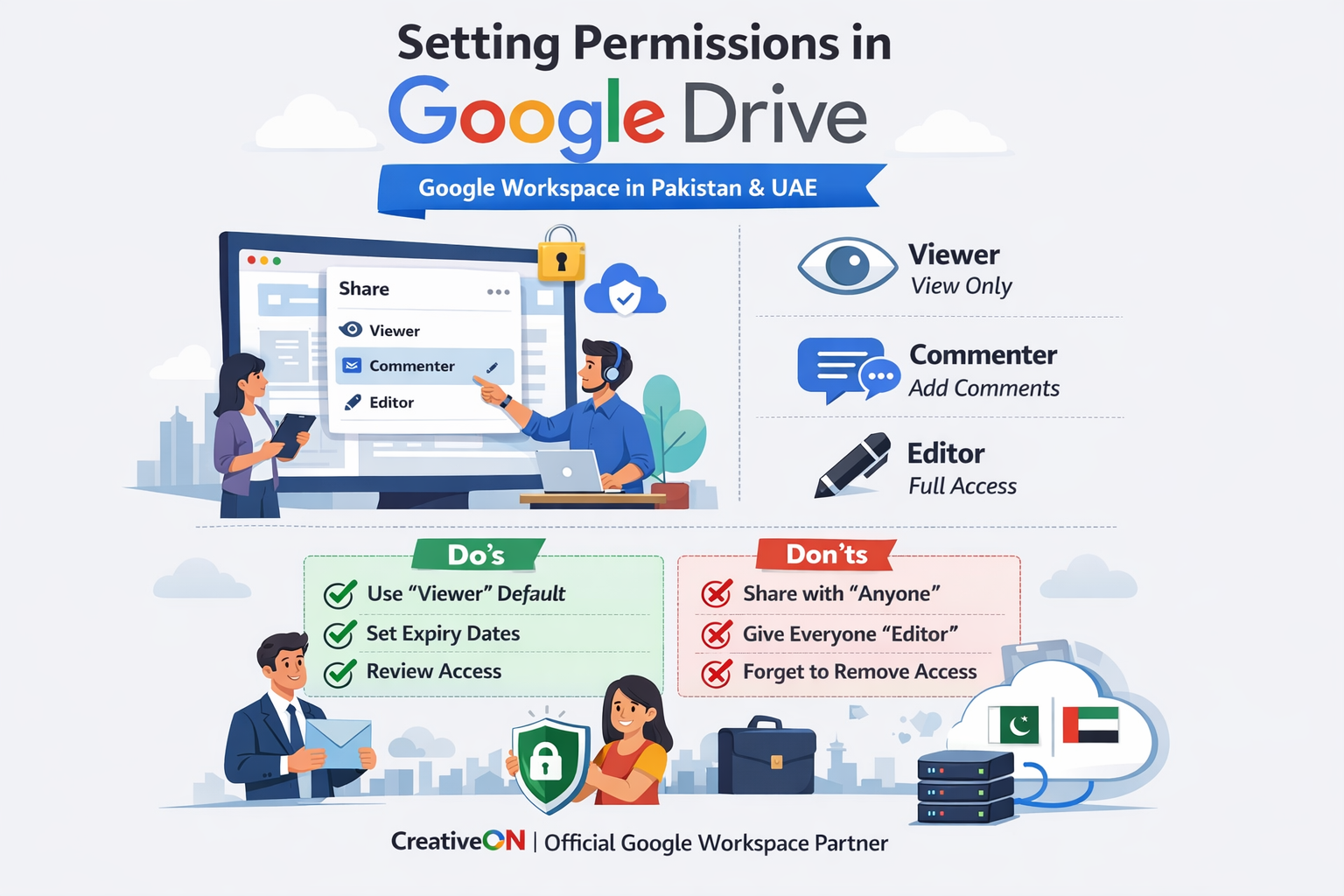
The 3 Main Permission Levels (Easy Guide)
Let’s break it down into simple terms:
1. Viewer (Read Only)
- Can open and read the file
- Cannot edit or comment
Best for:
- Reports
- Announcements
- Final documents
2. Commenter (Can Suggest)
- Can add comments
- Cannot change original content
Best for:
- Feedback
- Reviews
- Team discussions
3. Editor (Full Access)
- Can edit, delete, and share
- Can invite others
Best for:
- Trusted team members
- Admin staff
Tip: Only give Editor access to people you fully trust
How to Share Files in Google Drive (Step-by-Step)
Follow these simple steps:
- Open Google Drive
- Right-click the file
- Click “Share”
- Enter email address
- Select permission (Viewer / Commenter / Editor)
- Click “Send”
Your file is now shared.
Understanding Link Sharing (Very Important)
Sometimes you don’t want to add emails one by one.
That’s where link sharing is useful.
You will see:
Restricted
- Only selected users can access
Anyone with the link
- Anyone with the link can open
Be careful here.
If set to Editor, anyone with the link can make changes.
If set to Viewer, it is much safer.
Folder Permissions (Save Time Efficiently)
You can also set permissions for entire folders.
When you share a folder:
- All files inside follow the same rules
- You don’t need to set permissions again and again
Example:
“Company Documents” folder
- Manager → Editor
- Staff → Viewer
Advanced Access Controls
You can also use these features for better control:
Disable Download, Copy, and Print
You can stop users from:
- Downloading files
- Copying content
- Printing
This is useful for sensitive data.
Remove Access Anytime
If you shared something by mistake:
- Open sharing settings
- Remove the user
Changes apply immediately.
Set Expiry Access
You can give temporary access.
Example:
A freelancer gets access for a few days only.
Real-Life Use Cases (Pakistan & UAE Businesses)
Here’s how businesses use permissions:
Schools and Colleges
- Teachers → Editor
- Students → Viewer
Companies
- Managers → Editor
- Employees → Commenter
Freelancers and Agencies
- Client → Viewer
- Team → Editor
Healthcare and Home Care Services
- Sensitive data → Restricted access only
This helps protect private information.
Common Mistakes to Avoid
Avoid these common issues:
- Giving Editor access to everyone
- Using “Anyone with link” without checking
- Not reviewing access regularly
- Forgetting to remove old users
Tip: Review permissions at least once a week.
Pro Tips for Better Control
Use these simple practices:
- Use Viewer as default access
- Share folders instead of individual files
- Use Shared Drives for teams
- Keep business files separate from personal accounts
- Maintain at least two admins in Google Workspace
Why Businesses Choose Google Workspace
Businesses in Pakistan and UAE prefer Google Workspace because it provides:
- Secure business emails
- Cloud storage with Google Drive
- Easy team collaboration
- Full control over file access
When used correctly, your data stays safe and organized.
Why Choose CreativeON for Google Workspace?
At CreativeON, we help businesses in Pakistan and UAE get started with Google Workspace in the right way.
We are:
- Official Google Workspace Partner and Reseller
- Serving locally in Pakistan and UAE
- PKNIC Gold Partner
Why are our prices lower?
- We work directly as partners
- We keep margins low
- We focus on long-term relationships
This allows us to provide:
- Affordable Google Workspace pricing in Pakistan and UAE
- Setup and migration support
- Local assistance when needed
Frequently Asked Questions (FAQs)
What is the safest permission setting in Google Drive?
Viewer mode is the safest because it prevents editing.
Can I control file access in Google Workspace?
Yes, you can manage who can view, comment, or edit files.
What happens if I share a file publicly?
Anyone with the link can access it, depending on permission level.
Can I remove access later?
Yes, access can be removed at any time.
Is Google Drive secure for business use?
Yes, especially when permissions are set correctly.
Quick Summary
- Permissions control who can access your files
- Viewer is safest
- Commenter is for feedback
- Editor gives full control
- Use link sharing carefully
- Review access regularly
Final Thoughts
Setting permissions in Google Drive may feel confusing at first.
But once you understand it, it becomes a powerful tool in Google Workspace.
Start using these settings today and manage your files with confidence.
Need Help Getting Started?
If you want help setting up Google Workspace in Pakistan or UAE, CreativeON is ready to assist.
We help with:
- Business email setup
- Google Drive configuration
- Access control and security
Contact us to get started.