
.. Imagine this: a teacher is looking for an assignment submitted by a student… but the file is lost somewhere between “Final_Assignment_v2_NEW_latest_REALFINAL.pdf” and “Homework (copy) (copy).docx.” Sounds familiar, right?
When students and teachers use Google Drive without a simple structure, files can quickly turn into a confusing mess.
The good news? With a few simple steps, Google Drive can become a clean, well-organized digital classroom where teachers find assignments quickly and students never lose their work again.
If your school or institute uses Google Workspace, organizing files becomes even easier. At CreativeON, we help schools in Pakistan and the UAE set up Google Workspace for education, Business Emails, and collaboration tools so teachers and students can work smoothly together.
Let’s walk through simple, practical ways to organize files in Google Drive for students and teachers.
Why File Organization Matters in Google Drive
Think of Google Drive like a digital school bag.
If everything is thrown inside randomly, you will waste time searching. But if you use folders like Math, Science, Homework, and Notes, everything becomes easy to find.
A clean file system helps teachers and students:
- Find assignments quickly
- Submit homework in the right place
- Avoid duplicate files
- Work together on group projects
- Keep school work separate from personal files
When schools use Google Workspace in Pakistan or the UAE, teachers can manage classes more smoothly using Google Drive, Google Classroom, and shared folders.
Step 1: Create Main Folders for Each Class
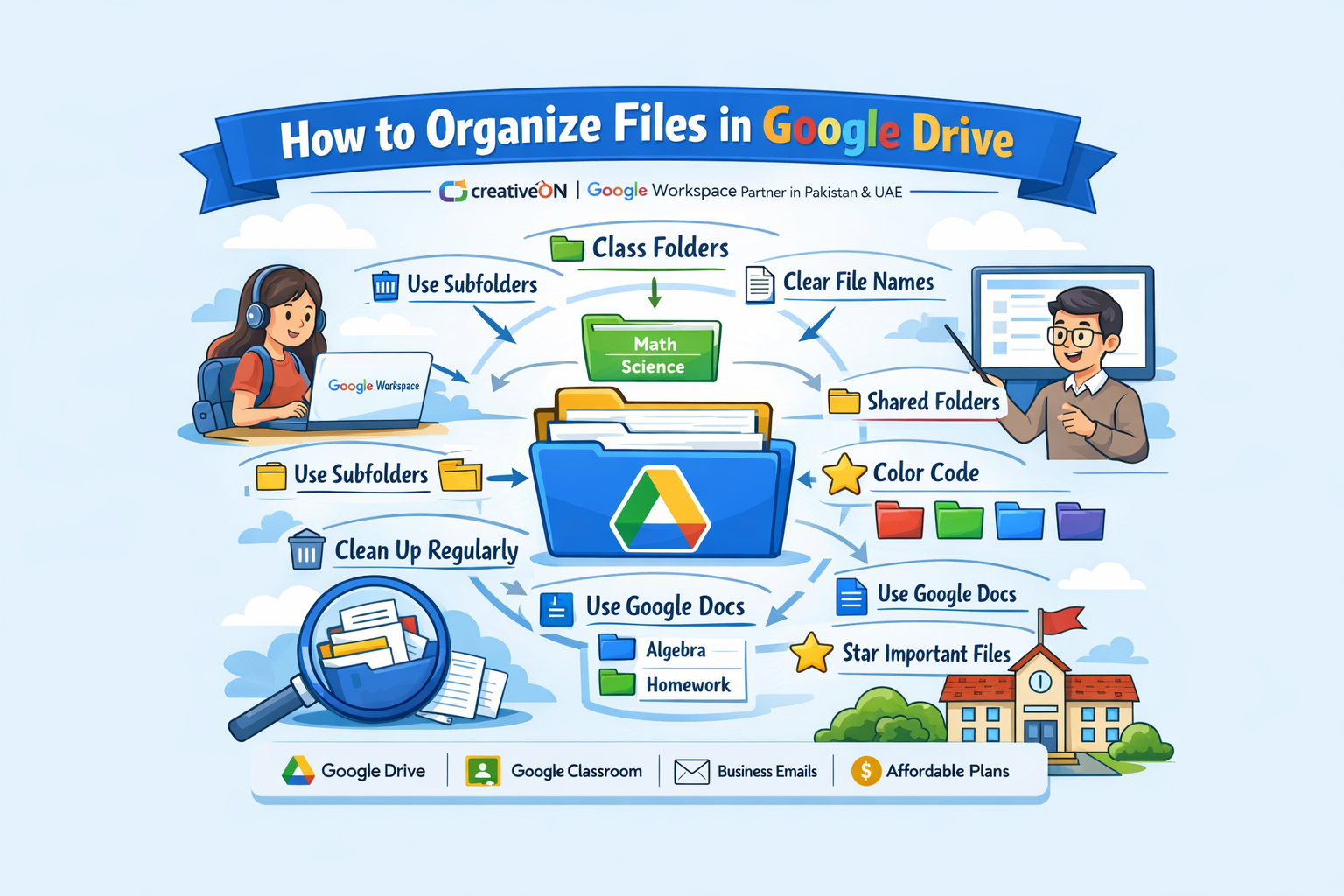
The first step is simple: create a folder for each subject or class.
For example:
Teacher Folder Structure
- English Class
- Mathematics
- Science
- Homework Submissions
- Exams and Tests
- Student Projects
Student Folder Structure
- English Homework
- Math Assignments
- Science Notes
- Group Projects
- Study Materials
This makes it easy for everyone to know exactly where files should go.
Quick tip:
Make folder names clear and simple, such as:
- Math Grade 7
- English Assignments
- Science Projects
Avoid confusing names like “school stuff.”
Step 2: Use Subfolders for Each Topic
Now let’s make things even cleaner.
Inside each class folder, create subfolders for topics, lessons, or assignments.
Example:
Mathematics Folder
- Algebra
- Geometry
- Homework
- Tests
- Class Notes
Inside Homework, you could add:
- Week 1 Homework
- Week 2 Homework
- Final Assignment
This structure helps teachers quickly check student work without scrolling through hundreds of files.
Step 3: Use Clear File Names
File names matter more than people think.
A messy name makes files hard to find.
Here is a simple formula students can use:
Subject + Assignment + Name + Date
Example:
Good File Names
- Math_Homework_Ali_Sept12
- Science_Project_Sara_Grade7
- English_Essay_John_March10
Avoid names like:
- Homework1
- Myfile
- FinalFINAL
Teachers can also guide students by sharing naming rules at the start of the class.
Step 4: Use Shared Folders for Classroom Work
One of the best things about Google Workspace is the ability to share folders with students or teachers.
For example, a teacher can create:
Shared Classroom Folder
Inside it:
- Lecture Notes
- Assignments
- Reading Materials
- Student Submissions
Students can:
- View lecture notes
- Upload homework
- Work on shared documents
This keeps the whole class organized in one place.
Schools using Google Workspace Pakistan or Google Workspace UAE often use this method to manage hundreds of students.
Step 5: Use Color Coding for Folders
Here is a neat little trick.
Google Drive lets you change folder colors.
For example:
- Blue = Math
- Green = Science
- Red = Exams
- Yellow = Homework
Teachers and students can quickly spot the right folder without reading every name.
Small things like this make daily work faster.
Step 6: Use Google Docs Instead of Many File Types
Instead of uploading many different file formats, it is easier to use:
- Google Docs for assignments
- Google Sheets for data or tables
- Google Slides for presentations
Benefits include:
- Automatic saving
- Easy sharing
- No version confusion
- Teachers can comment directly on work
This is one reason many schools choose Google Workspace for education.
Step 7: Use Starred Files for Important Documents
Students often lose track of important files like:
- Exam schedules
- Project instructions
- Study guides
Google Drive has a simple feature called Starred.
Just click the star icon, and the file appears in your Starred section for quick access.
Teachers can also star files like:
- Class lesson plans
- Student reports
- Marking sheets
Step 8: Clean Up Your Drive Regularly
Even the best system can become messy over time.
So make it a habit to clean your Drive once a month.
Students should:
- Delete duplicate files
- Move documents into correct folders
- Rename unclear files
Teachers can archive older class materials into folders like:
- 2025 Class Files
- Past Assignments
This keeps the current school year easy to manage.
Real-Life Example: How a School Uses Google Drive
Let’s imagine a school using Google Workspace in Pakistan.
A teacher creates this structure:
Grade 8 Folder
Inside it:
- Math
- Science
- English
- Exams
- Student Projects
Inside Math
- Lecture Notes
- Homework
- Tests
Students simply upload assignments to the Homework folder.
Teachers check everything in one place.
No emails.
No lost files.
No confusion.
Isn’t that neat?
Common Questions About Organizing Google Drive
Do students need separate folders?
Yes. Students should have folders for each subject so assignments stay organized.
Can teachers control who can edit files?
Yes.
Teachers can set permissions such as:
- View only
- Comment only
- Edit access
This prevents students from accidentally changing files.
Is Google Drive safe for schools?
Yes.
When schools use Google Workspace, data security and access control are much stronger than personal accounts.
Can Google Classroom organize Drive automatically?
Yes!
When a teacher creates assignments in Google Classroom, it automatically creates folders in Google Drive.
This saves a lot of time.
Why Schools Choose Google Workspace
Schools around the world use Google Workspace because it helps teachers and students work together easily.
It includes tools like:
- Google Drive
- Google Docs
- Google Sheets
- Google Slides
- Google Classroom
- Google Meet
- Business Emails for schools
At CreativeON, we provide Google Workspace in Pakistan and the UAE to schools, businesses, and organizations.
Because we are an official Google Workspace partner and reseller, we can offer Google Workspace pricing in Pakistan and UAE at lower rates.
We also support customers with:
- Setup and migration
- Training for teachers and staff
- Technical support
CreativeON is also a PKNIC Gold Partner, which helps us provide reliable digital services.
Sometimes we even reduce our own profit margin so schools and organizations can get Google Workspace plans at affordable prices.
Helpful Tips for Students and Teachers
Before we finish, here are a few simple tips:
✔ Keep folder names short
✔ Always follow the same file naming rule
✔ Use shared folders instead of email attachments
✔ Star important files
✔ Clean up your Drive regularly
Just a little organization can save hours of searching later.
Quick Summary
Let’s quickly review what we learned.
To organize files in Google Drive for students and teachers:
- Create folders for each class
- Use subfolders for topics and homework
- Name files clearly
- Use shared folders for classrooms
- Color-code folders
- Use Google Docs, Sheets, and Slides
- Star important files
- Clean your Drive regularly
With these simple habits, Google Drive becomes a powerful digital classroom.
And guess what?
Once your school starts using Google Workspace, collaboration between teachers and students becomes even easier.
If you are planning to use Google Workspace in Pakistan or the UAE, the team at CreativeON can help you choose the right Google Workspace plans, guide you about Google Workspace pricing in Pakistan and UAE, and set everything up for your school or organization.