
By Asher Feroze
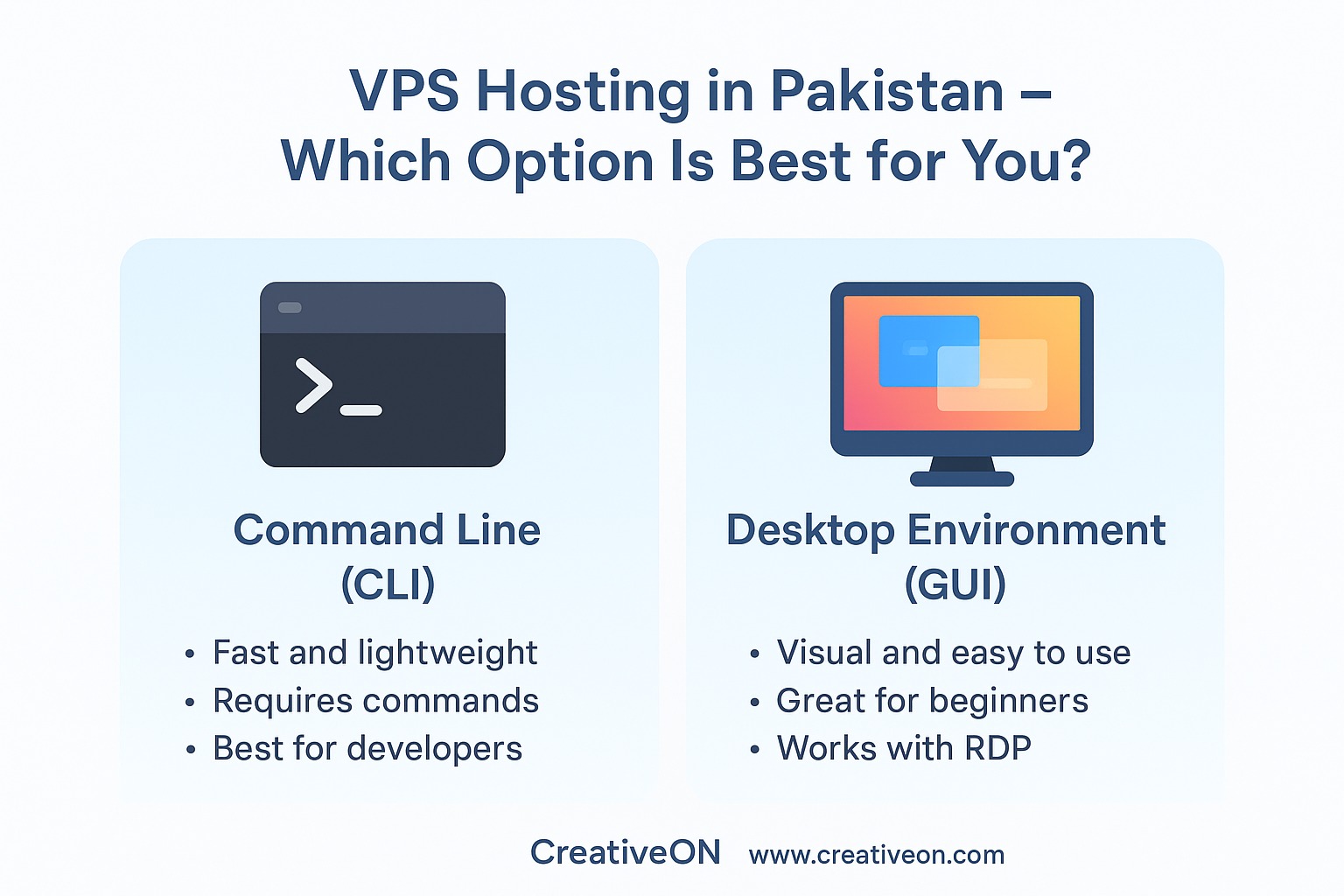
If you’ve recently purchased a VPS Hosting plan in Pakistan and logged in for the first time, you probably saw a black window filled with white text. That’s the Command Line — powerful, fast, and super-efficient… but not exactly friendly if you’re used to clicking icons, opening folders, and using your mouse.
The good news?
You don’t have to stick with that black terminal forever.
In this guide, I’ll show you how to install a Desktop Environment (GUI) on your Ubuntu VPS, so it looks and feels more like a normal computer. Whether you want to manage files visually, use a browser, or access your VPS through Remote Desktop (RDP), this tutorial is for you.
I’m Asher Feroze from CreativeON, and my job is to make VPS hosting simple for everyone — especially beginners.
Let’s get started.
What Is a Desktop Environment on an Ubuntu VPS?
A Desktop Environment (also called GUI) adds a visual interface to your Linux server.
Think of it like this:
- Command Line = A dark room where you know the exact positions of everything.
- Desktop Environment = The lights are on. You can see folders, menus, icons, and apps.
If you want to manage your VPS in Pakistan without worrying about complex commands, installing a GUI makes everything easier.
Why Install a GUI on Your VPS Hosting in Pakistan?
Many users prefer a visual interface when managing:
- Website files
- Databases
- Cloud applications
- Python or PHP projects
- Browsers or automation tools
- N8N, Ollama, Kubernetes dashboards, etc.
A GUI is extremely helpful for beginners and developers who want a comfortable workspace.
However, keep in mind:
👉 A GUI uses more RAM.
For smooth performance, choose a VPS plan with at least 2 GB RAM, especially if you plan to browse or multitask.
Before You Begin: What You Need
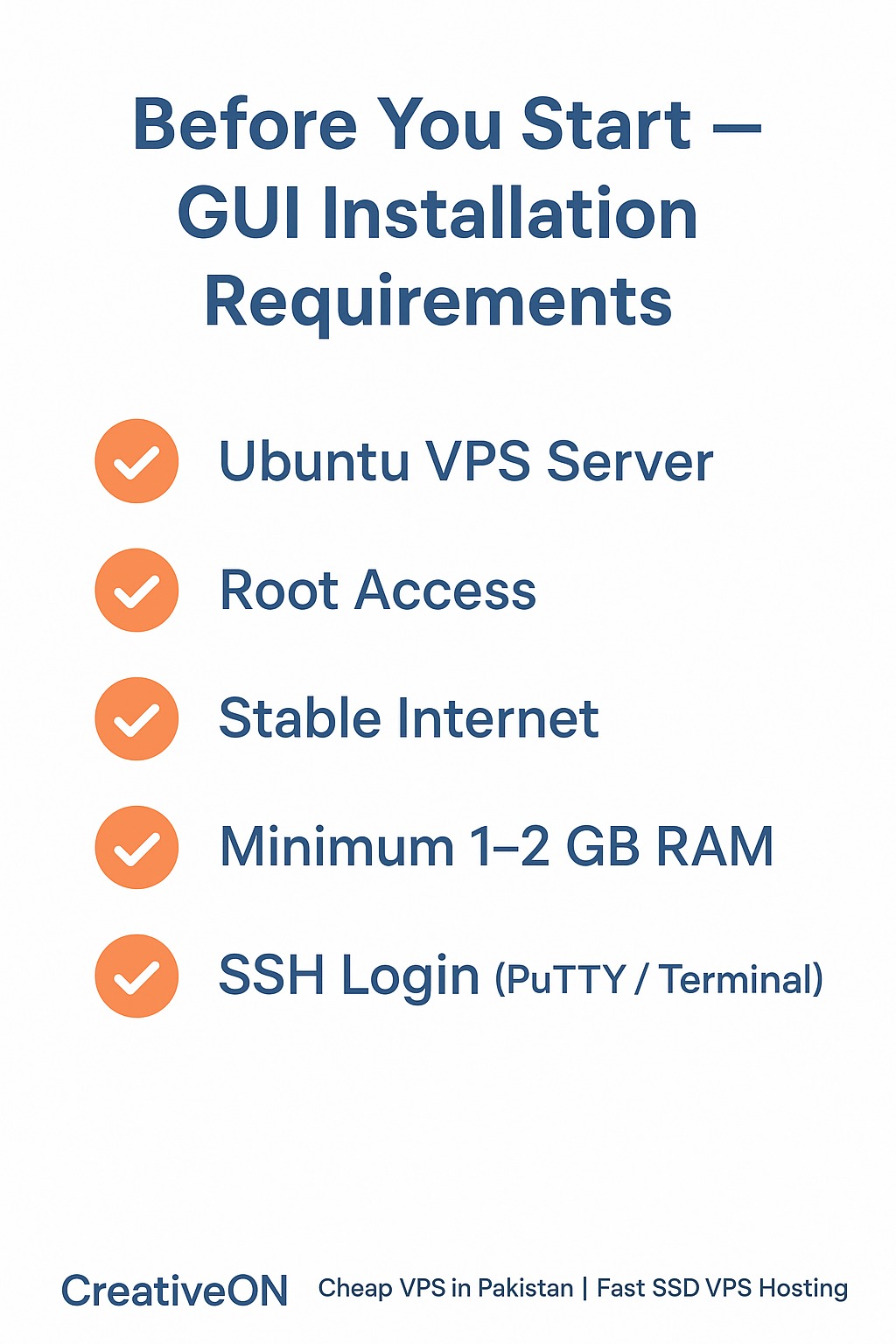
To follow this guide, make sure you have:
✔ An Ubuntu VPS
If you need a cheap VPS in Pakistan, CreativeON provides fast SSD VPS with full root access.
✔ Root Access
This allows you to install software and configure your server.
✔ Basic SSH Login
You can log in using PuTTY (Windows) or Terminal (Mac/Linux).
✔ At Least 1–2 GB RAM
Desktop environments require memory to run smoothly.
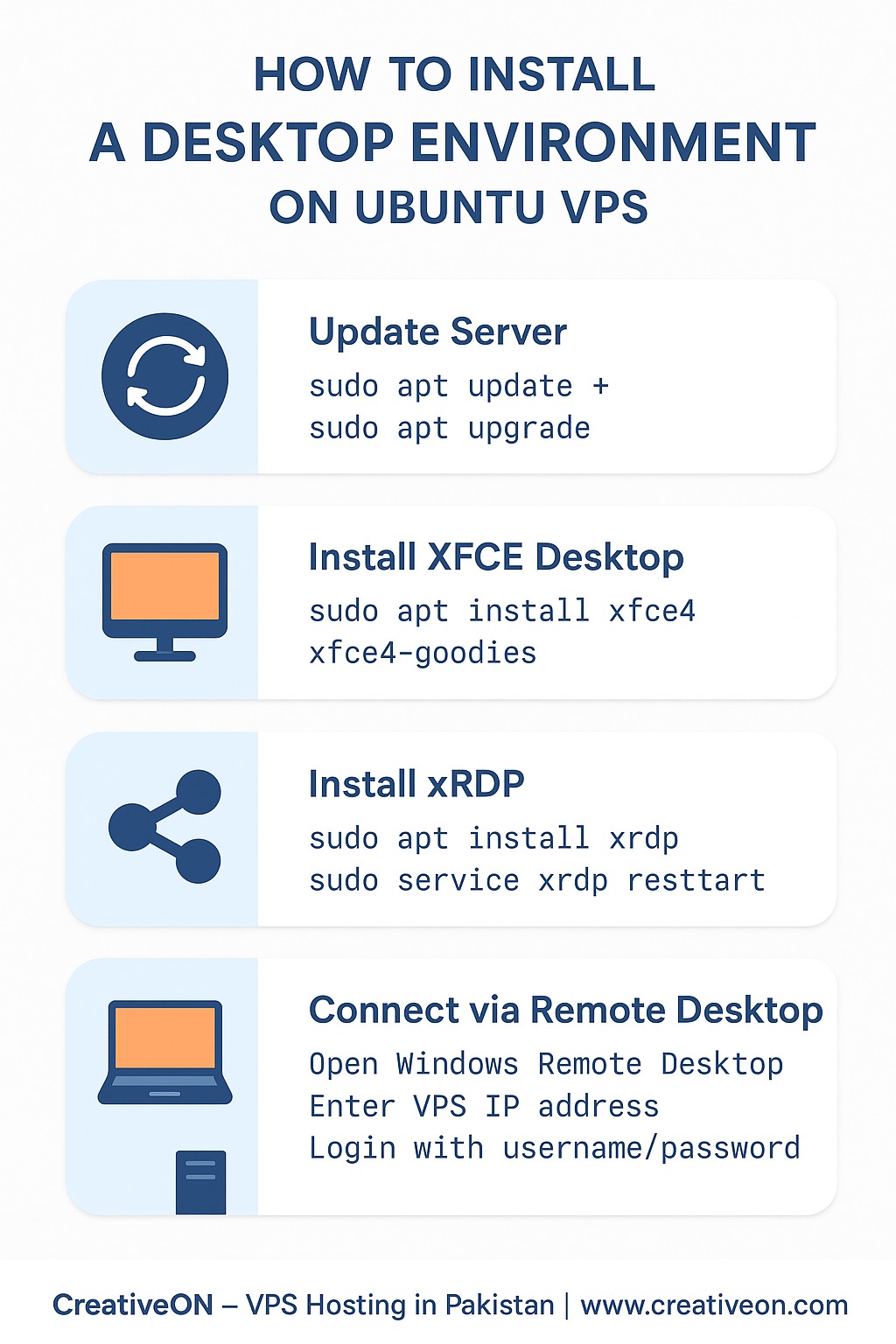
Step 1: Update Your Ubuntu VPS
Before installing anything, always refresh your system packages.
Run these commands:
sudo apt-get update
sudo apt-get upgrade
Press Y when asked.
This ensures your VPS Hosting environment is clean, secure, and ready.
Step 2: Install a Lightweight Desktop Environment (XFCE)
There are many desktop environments for Linux, but the best option for VPS Hosting is:
✔ XFCE
Lightweight, fast, stable — perfect even for small VPS servers.
Install it using:
sudo apt-get install xfce4 xfce4-goodies
This may take a few minutes as it downloads all the GUI components.
Step 3: Install xRDP (The Tool That Lets You Connect Graphically)
To connect to your VPS using Remote Desktop (RDP), you need xRDP.
Install it:
sudo apt-get install xrdp
Now set xRDP to use the XFCE desktop:
echo xfce4-session > ~/.xsession
Restart the service:
sudo service xrdp restart
IMPORTANT: Allow RDP Port (3389)
Many users cannot connect because the firewall blocks the RDP port.
Run:
sudo ufw allow 3389
Now your VPS is ready for RDP access!
Step 4: Connect to Your VPS Desktop from Windows
Here comes the fun part.
On your Windows computer:
- Open Remote Desktop Connection (RDP).
- Enter your VPS IP Address.
- Click Connect.
- Enter your username and password.
- Boom — your VPS now looks like a full desktop computer!
You can now browse the internet, manage files, run apps, and use your VPS visually.
FAQs — Important Questions Beginners Ask
